

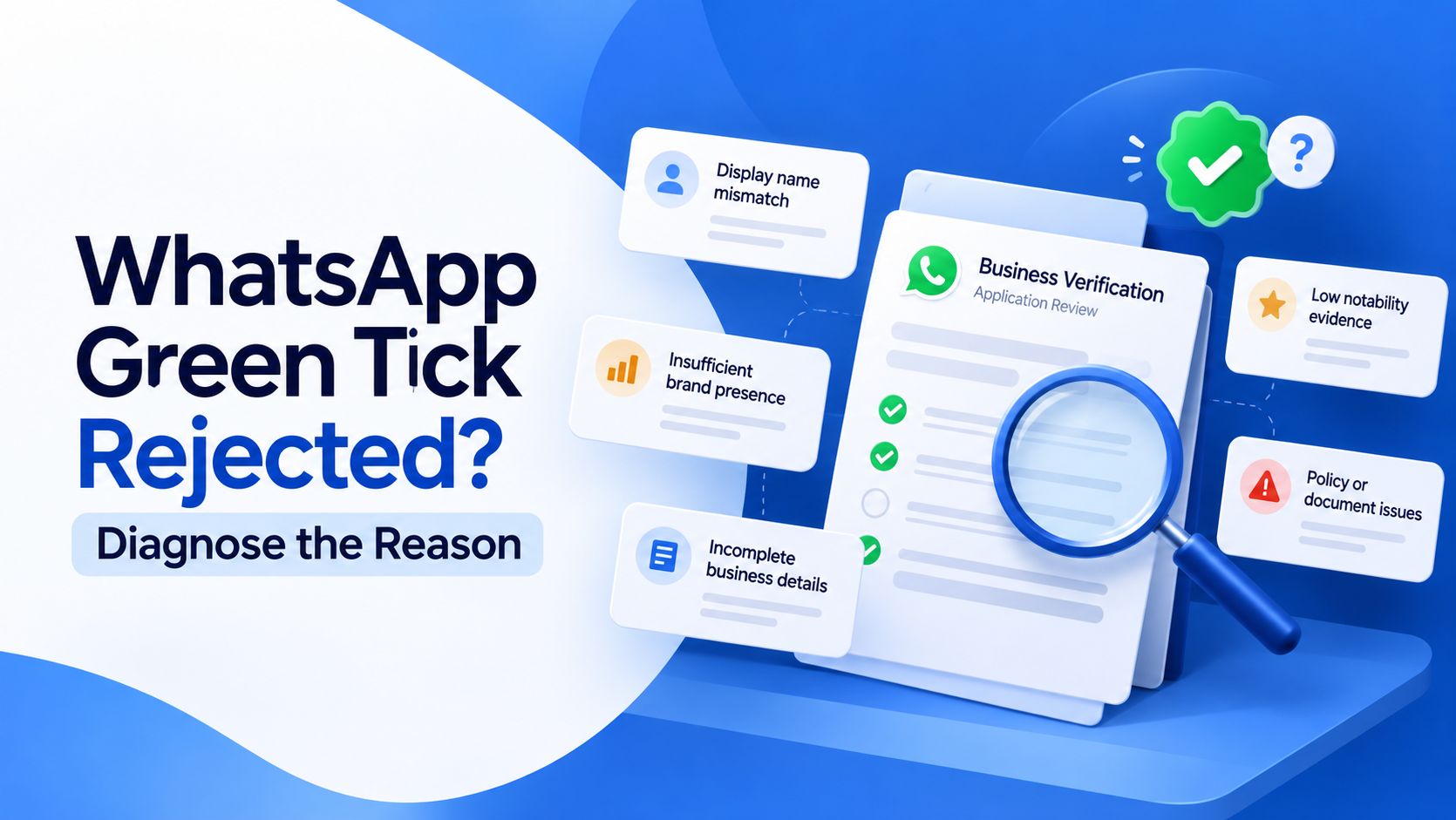
A rejected WhatsApp verification request does not always mean your business is permanently ineligible. In many cases, the problem is related to business identity, profile information, account eligibility, documentation or the verification route being used.
Businesses still commonly search for WhatsApp Green Tick rejection, although WhatsApp now refers more broadly to verified badges, Meta Verified and other verified business account routes.
If your verification request was unsuccessful, avoid immediately submitting the same information again. The better approach is to diagnose what may have failed, correct the underlying issue and only then consider another application.
Quick Concept
A WhatsApp verification request can fail when Meta cannot confidently connect the WhatsApp account with the business being verified or when the account does not meet the requirements of the selected verification route.
Start by checking:
Business name alignment: Does the WhatsApp profile name match the business you are trying to verify?
Profile information: Are your website, category, address and business details accurate?
Business identity: Can Meta clearly establish that the business is genuine?
Account eligibility: Is Meta Verified or the relevant verification route available for your account?
Policy standing: Is the account operating within WhatsApp Business and Commerce policies?
Meta controls the final verification decision, so fixing these fundamentals is more useful than repeatedly applying with unchanged information.
Check for a Business Name Mismatch First
One of the clearest documented reasons verification can fail is a mismatch between the business being verified and the WhatsApp profile name.
WhatsApp states that if the business name does not match the profile name associated with the WhatsApp Business account, Meta may be unable to complete Meta Verified verification.
Review:
WhatsApp profile name: Use the genuine customer-facing business identity.
Website branding: The same business should be clearly identifiable on the official website.
Meta business information: Avoid major naming differences between connected business properties.
Unnecessary additions: Do not add promotional terms simply to make the display name look more authoritative.
If Meta specifically asks you to update the profile name, make the correction before resubmitting rather than changing unrelated account information.
Review Your Business Profile Information
Verification becomes harder when the account contains incomplete, outdated or inconsistent information.
Before another attempt, review the complete WhatsApp Business profile.
Pay particular attention to:
Business category: It should accurately represent what the company does.
Website: Use the official business website and make sure it is functioning.
Email: Use a current business contact address.
Address: Keep the location accurate where it is relevant to the business.
Profile image: Use branding clearly associated with the company.
Business description: Explain the company clearly without misleading claims.
WhatsApp also advises businesses to make sure their information is correct before subscribing to Meta Verified because certain profile information can become locked and later changes may require additional review.
Confirm That You Are Using the Right Verification Route
Businesses sometimes diagnose a “rejection” when the real problem is that they are following instructions for a different WhatsApp verification product.
The routes are not interchangeable.
Meta Verified: A paid subscription available to eligible WhatsApp Business accounts.
Verified business account routes: Some verified accounts are authenticated based on business activity across Meta technologies or information and documents provided.
Existing verified accounts: Businesses that already hold verified status do not necessarily need to subscribe again.
Unavailable Meta Verified option: If Meta Verified does not appear under Settings or Business Tools, WhatsApp says it is currently unavailable to that account.
If your objective is broader verification setup rather than diagnosing a failed application, use EMOVUR's guide on how to get WhatsApp Blue Tick verification in India.
Check Whether Your Business Identity Is Easy to Verify
Verification is easier to assess when the business has a consistent public identity.
Look at your business from Meta's perspective. Is it immediately clear that the WhatsApp account, website and business information belong to the same organisation?
Check:
Company name is consistent: Customers see the same core brand identity across major channels.
Website clearly explains the business: It should not look incomplete or unrelated to the WhatsApp account.
Contact information is genuine: Customers should have a reliable way to identify and contact the company.
Branding is stable: Avoid changing names or identity repeatedly during the verification process.
Business activity is clear: The website and profile should make the products or services easy to understand.
EMOVUR's existing verification guidance also identifies inconsistent names, weak website trust signals and incomplete business details as common readiness problems businesses should address before another verification attempt.
Review Policy and Account Health
A verification badge should not be treated separately from the health of the WhatsApp Business account.
WhatsApp states that violations involving spam, prohibited commerce or activities that put users at risk can result in account action, including loss of a Meta Verified subscription.
Before reapplying, review whether your business is:
Sending messages to appropriately opted-in customers
Avoiding spam-like bulk messaging behaviour
Respecting customer blocks and opt-outs
Following WhatsApp Business Messaging policies
Following Meta Commerce policies where applicable
Using accurate business information rather than misleading claims
A verification badge cannot compensate for poor messaging practices or policy problems.
Avoid Changing Everything at Once
After rejection, businesses sometimes change the name, website, profile image, category and contact details simultaneously.
That can make the business identity less consistent rather than more credible.
Use a more controlled approach:
Identify the likely problem first: Start with any reason Meta provides.
Correct the specific mismatch: Fix inaccurate or inconsistent information.
Keep legitimate business details stable: Do not redesign the identity purely for verification.
Allow reviews to complete: WhatsApp notes that some profile-name reviews can take around 48 hours.
Reapply only when the account is genuinely ready: Repeating the same application is unlikely to solve the underlying problem.
What If Meta Verified Verification Fails?
For Meta Verified, WhatsApp says Meta reviews the application after submission. The verification process may take up to three business days and can take longer when submission volumes are high.
If verification is unsuccessful:
Review any notification or reason shown inside WhatsApp.
Correct business or profile information where required.
Make sure the profile name aligns with the business identity.
Confirm the subscription or verification option still applies to your account.
Avoid using third parties promising guaranteed approval.
Final verification remains