

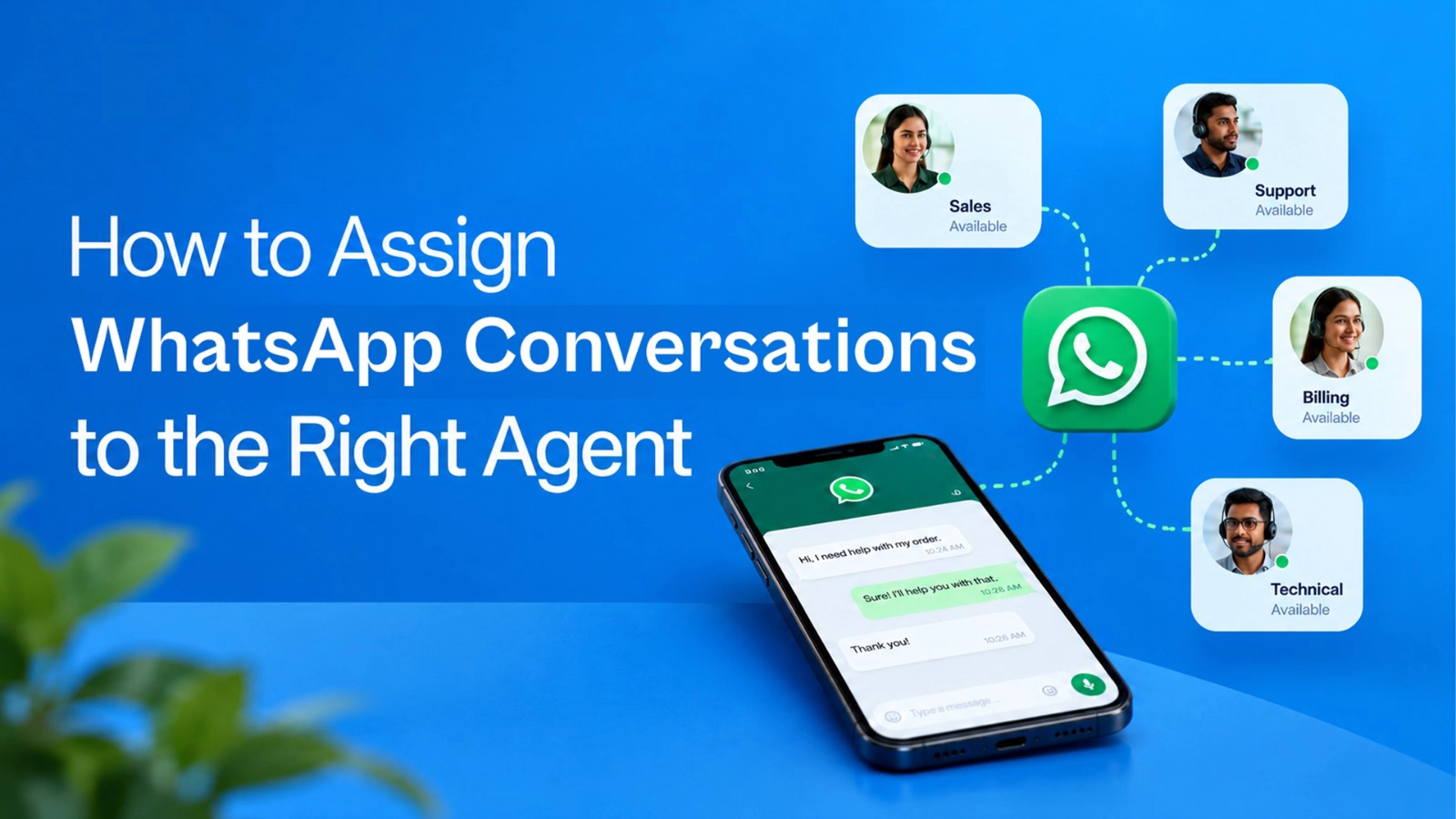
When every customer message lands in one inbox, the first question is simple. Who answers this one?
Most teams that want to assign WhatsApp conversations to the right agent start with a workaround. A manager forwards chats by hand. Leads get pasted into a group or a sheet. Agents take turns by day or by shift. It works for a few weeks. Then the mismatches start.
A billing question reaches a sales agent who cannot answer it.
A hot lead lands with someone who is on leave.
A returning customer gets a new agent who has no idea what was said before.
The problem is not only speed. It is matching. The right lead has to reach the agent who can actually handle it, without a manager sorting chats all day.
This guide shows how to set that up in a WhatsApp shared team inbox. You will see how to split chats into teams, write simple rules for who gets what, and use workflows to route by what the customer says, so every chat starts with the right owner instead of a lucky guess.
How to Assign WhatsApp Chats to Agents by Topic, Team or Lead Type
Assigning to whoever is free feels fast, but it quietly breaks things. The free agent is often the one with the least context, and the chat comes back to the queue when a better fit shows up.
How to Set Up Teams in a WhatsApp Shared Inbox
Go to Inbox > Settings > Teams and create teams like Sales, Support and Billing. An agent can sit in more than one team, so a senior agent can cover two queues. The Teams list shows an open conversation count for each team, which tells you where the pile is building up.
How to Auto Assign WhatsApp Chats to a Team Using Workflows
In Automations, create a Workflow with the trigger “Message created”. Then add a condition and the action “Assign to team”.
Message content: if the message contains “invoice”, assign to Billing.
Labels or contact fields: if the contact is tagged as a lead, assign to Sales.
Is unattended and Waiting minutes: catch chats nobody has touched yet.
Switch the Active toggle on when you are done. Other automation ideas live in our guide to WhatsApp automation workflows.
How to Assign a WhatsApp Conversation to a Specific Agent
A team assignment gets the chat to the right group. After that, one person needs to take it.
The agent who picks it up opens the chat and sets “Assigned to” to their own name. This is the step that stops two people from replying to the same customer. Next they set the Status, so the team knows if the chat is open or resolved. They also set the Priority, so urgent chats do not wait behind routine ones.
Then add a label. Keep it short, like “refund” or “demo request”. If the chat is reassigned later, the next agent can see the context at a glance instead of scrolling through the whole conversation.
To see what is yours, use the filters on the conversation list. Filter by Assignee to see your own chats, by Labels to see one type of request, or by Teams to see everything your team is handling.
What to do when you reassign a chat after the 24-hour window closes
This is where handovers quietly fail. Reassigning a chat does not reopen the WhatsApp 24-hour window.
If the window has expired, the new agent sees a “Session expired” banner and cannot type free text. They must send an approved template first. The banner stays until the customer replies. A template alone does not bring back free text.
So before you hand over a chat:
Check for the banner. If the window is still open, reassign now and let the new agent reply freely.
If it has expired, keep an approved follow-up template ready that ends with a question, so the customer has a reason to reply.
Add a label such as “Template sent” so nobody sends it twice.
Use a canned response to introduce the new agent. Type / and the shortcut, and the reply can use the contact’s first name. You can edit it before sending.
Common Mistakes When Assigning WhatsApp Conversations to Agents
FAQS:
Can WhatsApp conversations be assigned automatically?
Yes. Emovur lets you build a Workflow that runs when a new message arrives. You add conditions, such as words in the message, a label, or a contact field. When a chat matches, the Workflow assigns it to the team you picked, for example Billing or Sales. Nobody has to sort chats by hand. Turn on the Active toggle once you have tested the rule. Once a chat reaches the team, an agent picks it up and sets “Assigned to”.
Can I assign a chat to one specific agent?
Yes. Open the chat and set “Assigned to” in the chat panel. This works well for returning customers who already know an agent, or for chats that need a particular person. In Emovur, the Workflow action assigns to a team, so the individual agent is set by the agent who picks up the chat or by a team lead. You can also set the Status and Priority in the same panel.
Can an agent belong to more than one team?
Yes. In Emovur, you create teams under Inbox > Settings > Teams, and one agent can be added to more than one. This helps small teams where the same person covers sales and support. The Teams list also shows how many conversations are open for each team, so you can see which team is getting overloaded.
What happens if a chat is reassigned after 24 hours?
Reassigning does not reopen the WhatsApp 24-hour window. If the window has closed, the new agent sees a “Session expired” banner and cannot send free text. They must send an approved template first. The banner stays until the customer replies, so a template alone does not bring back free text. Check for the banner before you hand a chat over, and keep a follow-up template ready that ends with a question, so the customer has a reason to reply.
How do I find chats nobody has picked up?
Filter the conversation list by Assignee to see chats with no owner. For a bigger picture, open Insights. The Overview shows counts for Unassigned and Unattended chats, and for chats that were never answered. Check these at the start of each shift. If the Unassigned count keeps growing, it usually means a Workflow rule is missing for that type of chat.
Assign WhatsApp Chats to the Right Agent With Emovur
Chats only get lost when nobody owns them. With teams, workflows and clear assignment rules in one shared inbox, every message reaches the person who can answer it. Explore the WhatsApp Business API plans built for teams, or book a demo and see how Emovur assigns and routes chats live.
Related Reads:
Multiple Agents on WhatsApp Business API: How It Works | Emovur
Human + AI on WhatsApp: Design the Handoff
TABLE OF CONTENTS