

Sending a WhatsApp message through an API is only one side of the integration. Your system also needs to know what happens after that message is sent and how to react when a customer responds.
This is where WhatsApp API webhooks become important.
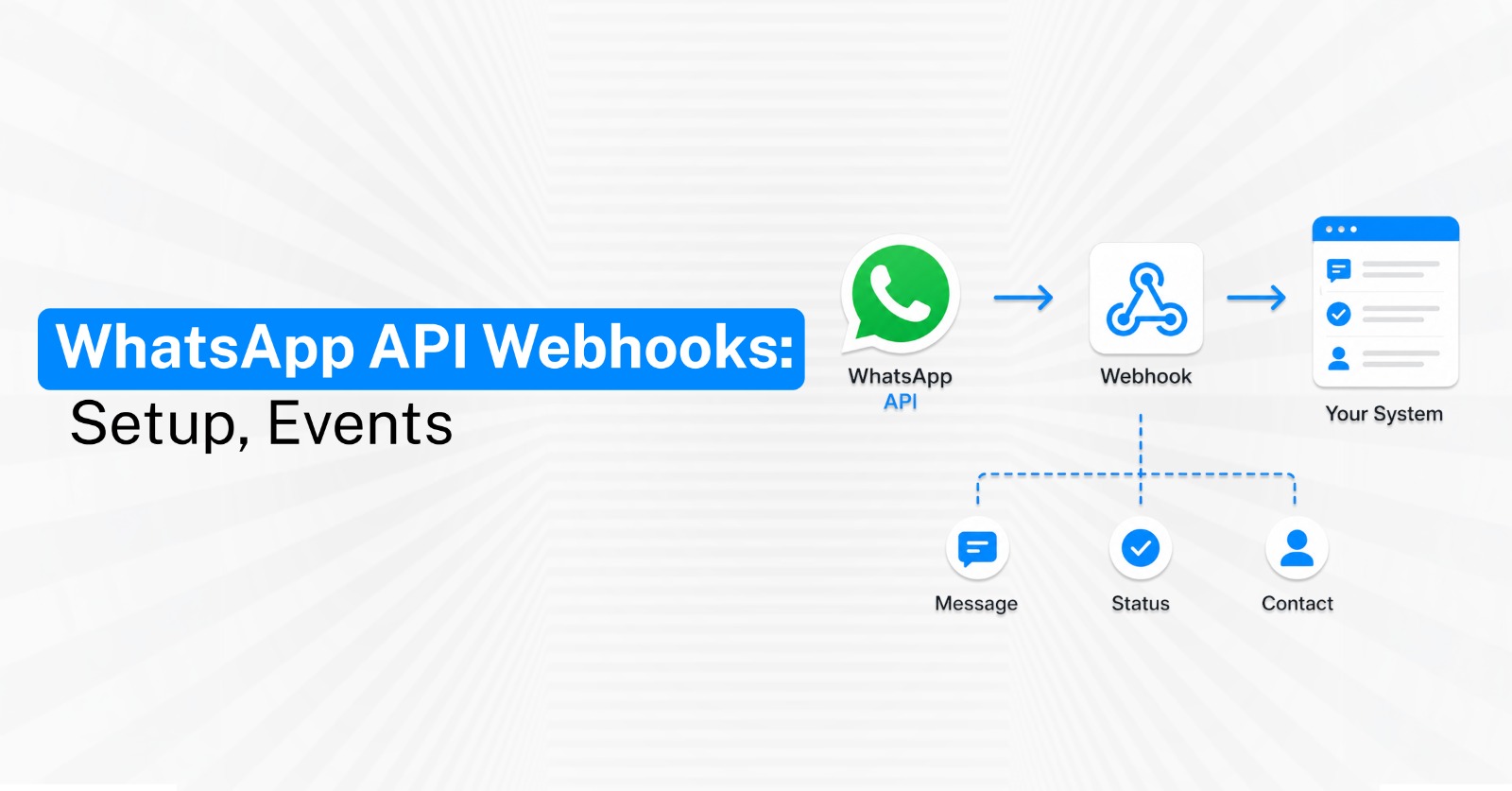
Webhooks allow WhatsApp to send event data to your application when something happens, such as receiving a customer message or getting an update about an outgoing message. Meta describes webhooks as a core part of the WhatsApp Business Platform for receiving incoming messages, message-status updates, asynchronous errors, and other notifications.
For businesses using WhatsApp API integration services, webhooks make it possible to connect customer activity with CRMs, chatbots, lead-routing systems, support platforms, and automation workflows.
What Are WhatsApp API Webhooks?
A webhook is an HTTP endpoint on your server that receives information automatically when a specific WhatsApp event occurs.
Instead of repeatedly asking the WhatsApp API whether something has changed, your application waits for WhatsApp to send the event to your configured callback URL.
WhatsApp API webhooks can support events such as:
Incoming messages: Notify your system when a customer sends a WhatsApp message.
Message status updates: Inform your application about changes to outgoing message status.
Customer interactions: Pass relevant interaction data into your CRM, chatbot, or application.
Workflow events: Trigger the next action when a defined customer event occurs.
Asynchronous errors: Help your application identify messaging or processing problems.
Business events: Certain WhatsApp Business Platform configurations can generate additional account or system notifications.
This event-driven approach is what allows businesses to build real-time WhatsApp integrations instead of treating the API only as a message-sending tool.
Step 1: Decide Which WhatsApp Events Your System Needs
Before configuring a webhook, identify what your application needs to do when WhatsApp activity occurs.
Not every business needs the same events or automation logic.
Your webhook requirements may include:
Lead responses: Send new customer replies into your CRM or lead-management system.
Support messages: Route incoming messages to the appropriate support queue.
Message tracking: Update your system when the status of an outgoing message changes.
Bot responses: Trigger chatbot logic when a customer sends a message or selects an option.
Lead qualification: Update customer information when a user completes a structured interaction.
Workflow progression: Move customers into the next stage of an automated sales or service process.
Defining these requirements before development prevents unnecessary webhook logic and makes debugging easier later.
Step 2: Create a Webhook Endpoint
Your webhook endpoint is the URL where event data will be delivered.
The endpoint needs to be accessible from the internet and capable of handling the requests generated by the WhatsApp Business Platform.
A basic webhook endpoint should be prepared to:
Accept verification requests: Meta uses a verification process when configuring or editing the callback URL.
Receive event payloads: Your server should accept and process the webhook data sent to it.
Read the payload correctly: Extract only the information required by your application.
Return the expected response: Your endpoint should respond successfully after receiving the event.
Log important events: Maintain enough information to investigate integration failures.
Protect sensitive data: Apply appropriate application and infrastructure security controls.
Meta's setup process uses GET requests to verify the webhook endpoint when the callback URL or verify token is configured.
Businesses using Emovur can also refer to the WhatsApp API documentation when connecting their existing technology stack with the platform. Emovur provides APIs and developer resources for programmatic integrations.
Step 3: Configure the Callback URL and Verification
Once your webhook endpoint exists, it must be connected to the WhatsApp configuration.
The callback URL tells the platform where webhook events should be delivered.
During webhook configuration, check:
Callback URL: Enter the correct publicly accessible endpoint.
Verify token: Make sure the verification value used by your application matches the value entered during configuration.
Endpoint verification: Confirm that your server correctly processes the verification request.
HTTPS availability: Use a secure endpoint suitable for external API communication.
Environment configuration: Ensure production URLs and credentials are not accidentally pointing to development systems.
A mismatch in the verification process is one of the first problems developers may encounter during setup.
Step 4: Process Incoming Webhook Events
Once the webhook is configured, your server can begin receiving events.
The next challenge is deciding what your application should do with each event.
For an incoming customer message, your system may:
Identify the customer: Match the WhatsApp number with an existing CRM contact.
Create a new lead: Add the customer when no matching record exists.
Store the conversation: Save relevant message information against the customer record.
Trigger automation: Start the appropriate chatbot or workflow.
Assign an agent: Route qualified conversations to the correct salesperson or support executive.
Update activity: Record the latest interaction in your CRM.
The webhook itself should not become unnecessarily complex. Receive the event, validate and process the required information, and pass it to the relevant business logic.
Step 5: Use Webhooks for WhatsApp Automation Workflows
Webhooks become especially valuable when WhatsApp is connected with other business systems.
For example, a customer response can become the trigger for the next stage of a sales, support, booking, or commerce journey.
Webhook-driven automation can support workflows such as:
Lead qualification: Customer response → update CRM → assign salesperson.
Appointment booking: Customer selection → update booking system → send confirmation.
Order processing: Customer action → update order system → trigger next communication.
Support routing: Customer message → identify issue → assign appropriate agent.
CRM follow-up: Customer response → change lead stage → create next sales task.
WhatsApp Flows: Submitted information → send data to your system → continue the workflow.
Emovur's webhook documentation currently describes webhook use for events including WhatsApp Flow responses and order-related updates, where businesses can configure callback URLs for their systems.
For more practical use cases, see these WhatsApp automation workflows.
Step 6: Return Successful Responses Quickly
Your webhook should acknowledge received events correctly.
If your endpoint does not return the expected successful HTTP response, the platform may treat the webhook delivery as unsuccessful.
Your webhook handling should therefore prioritize:
Fast acknowledgement: Avoid unnecessary processing before responding.
Reliable processing: Move heavier business logic into an appropriate processing layer when needed.
Error logging: Record failed events so they can be investigated.
Duplicate handling: Design your system so repeated delivery does not create duplicate leads or actions.
Monitoring: Track webhook failures and unusual response patterns.
Meta states that when a webhook request receives an HTTP response other than 200, webhook delivery is retried rather than automatically treated as successful.
This is why webhook reliability matters when WhatsApp is connected to revenue-critical sales or support workflows.
Common WhatsApp API Webhook Errors
Many webhook problems are caused by configuration or application logic rather than the WhatsApp messaging API itself.
Common errors to check include:
Webhook verification fails: Confirm the callback URL and verify-token handling.
No events are received: Check whether the correct webhook configuration and required event subscriptions are active.
Incorrect callback URL: Make sure production is using the correct endpoint.
Non-200 responses: Review server errors, authentication logic, and endpoint processing.
Duplicate actions: Ensure repeated events do not create duplicate CRM contacts, orders, or automated messages.
Payload parsing errors: Do not assume every webhook contains exactly the same data structure.
Slow endpoint processing: Avoid making the webhook wait for unnecessary downstream tasks.
Missing logs: Without proper logging, identifying whether the failure occurred at WhatsApp, webhook, CRM, or automation level becomes difficult.
The goal should be to make webhook processing predictable and observable, not simply to make the first test event work.
Step 7: Test the Complete Webhook Journey
Webhook testing should cover the complete customer journey rather than one successful API request.
A webhook can work technically while the connected business automation still fails.
Your testing process should verify:
Incoming messages reach the endpoint correctly
Customer information is identified accurately
CRM records are created or updated correctly
Automation starts only when the correct event occurs
Sales or support ownership is assigned correctly
Message-status events are processed correctly
Errors are logged for investigation
Repeated events do not create duplicate business actions
Testing should include both expected customer behaviour and failure scenarios.
Build Reliable WhatsApp Integrations With Webhooks
Webhooks are an essential part of building connected WhatsApp systems because they allow customer activity to trigger actions across your technology stack.
With properly configured WhatsApp API integration services, businesses can connect WhatsApp events with CRM updates, chatbot logic, customer support, lead routing, and automated workflows.
For developers building custom integrations, the WhatsApp API documentation provides Emovur's available API and integration resources.
Businesses planning more advanced automation can also explore WhatsApp automation workflows to understand how webhook events can become part of larger sales, support, and customer-management processes.
Explore Emovur's WhatsApp Business API solutions to build reliable integrations, automate customer journeys, and connect WhatsApp with the systems your business already uses.