

Direct Answer:
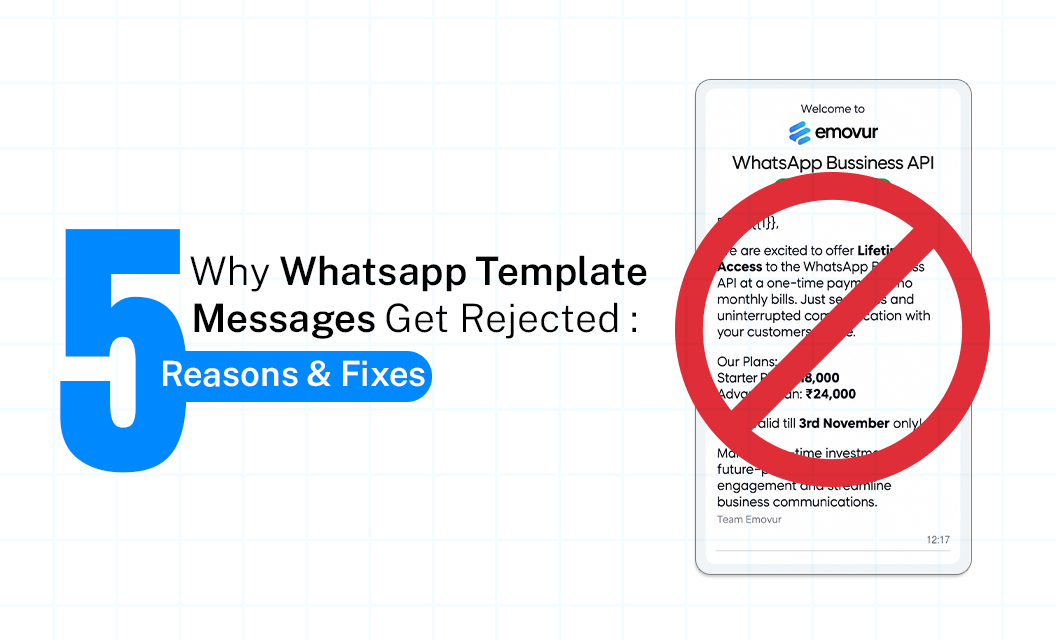
You create a WhatsApp message template, submit it for approval, and expect to start sending. Then the status changes to Rejected.
The frustrating part is that a template can look perfectly normal to you and still fail review. In many cases, the problem isn't simply the wording. It can come from the context, previous template history, inconsistent edits, unclear intent, or how the message is being presented for review.
In this guide, we'll look at five practical WhatsApp template rejection scenarios and what you can do differently before submitting again.
Already looking for the basic rules? Our WhatsApp Message Templates guide covers template categories, structure, variables, approval rules, and examples.
1. Your New Template Is Too Similar to the Rejected Version
Changing only a few words in a rejected template may not fix the issue. For example, consider the rejected version: “Hi {{1}}, get 20% OFF on your next order. Buy now!” A minor rewrite such as
“Hi {{1}}, enjoy 20% OFF on your next purchase. Shop now!” communicates the same message, so the template may be rejected again.
The fix
Review the rejection reason and change the actual problem, such as:
Unclear purpose
Wrong use case
Problematic wording
Poor structure
2. The Template Makes Little Sense Without Its Variables
Variables help personalize messages, but using too many can make the template unclear. For example,
“Your {{1}} has been {{2}}. Please use {{3}} before {{4}}.” does not clearly explain the message without knowing what each variable represents.
Use fixed text that provides enough context on its own. Instead of
“Your {{1}} has been {{2}},” write “Your order {{1}} has been shipped. Expected delivery: {{2}}.” Also, make sure your sample values clearly show what each variable means before resubmitting the template.
3. The Purpose of the Message Is Difficult to Understand
A WhatsApp template may use acceptable language but still be rejected if its purpose is unclear.
For example, “Hi {{1}}, we have an important update for you. Check this out today” does not explain whether the message concerns an order, account, appointment, or promotion. To avoid confusion, make the purpose clear in the opening sentence.
Instead of writing “Hi {{1}}, here's an important update for you,”
write “Hi {{1}}, your appointment with {{2}} is scheduled for {{3}}.”
The recipient should immediately understand why they are receiving the message. If the purpose is unclear from the first sentence, revise the opening before resubmitting the template.
4. You Changed the Template but Didn't Change Its Actual Use Case
A WhatsApp template may be rejected when its content does not match the business scenario or purpose for which it was submitted.
For example, using an order-update template for a promotional campaign creates a mismatch between the template’s intended use and its actual application.
Before resubmitting, clearly define the template’s purpose, such as:
“This message is sent when a customer’s order is dispatched.” Then ensure that every part of the template supports that use case. If the message is intended for a different purpose, create a separate template instead of using one template for multiple situations.
5. Fix the Reason for Rejection, Not Just the Copy
A template may be rejected because of a specific element that creates confusion, risk, or an inconsistent customer experience. This can include unclear buttons, misleading links, excessive punctuation, unusual formatting, or claims that the recipient cannot easily verify.
The fix
Review the complete template, not just the message body:
- Remove unnecessary symbols, repeated punctuation, and excessive emojis.
- Make button labels accurately describe their actions.
- Use clear, trustworthy links.
- Avoid vague claims such as “exclusive,” “guaranteed,” or “urgent” unless relevant.
- Ensure the message does not mislead customers about the offer, account, delivery, or required action.
What to Do After a WhatsApp Template Is Rejected
1. Read the rejection status carefully
Identify whether the problem relates to the content, intended use, or another template element.
2. Compare the rejected template with your actual use case
Ask whether the message genuinely describes the customer interaction it is intended for.
3. Fix the root issue
Avoid changing words randomly. Change the part that created the problem.
4. Review the complete template
Check the body, variables, sample values, buttons, and overall context together.
5. Resubmit a meaningful revision
If the original structure is fundamentally unsuitable, creating a new version can be better than making cosmetic changes.
6. Keep versions organised
Use names such as order_update_v1, order_update_v2, and order_update_v3 so your team knows which version is active.
Final Takeway:
A rejected WhatsApp template doesn't always mean you need to rewrite the entire message. The key is to understand what actually caused the rejection and fix that specific issue. Once your templates are ready, you can use the WhatsApp Business API to automate customer communication, broadcasts and messaging workflows.
Want to understand the cost before you start sending? Check the latest WhatsApp API pricing and plan your messaging volume accordingly.