

WhatsApp Template Buttons Guide: CTA, Quick Reply & Authentication
opening:
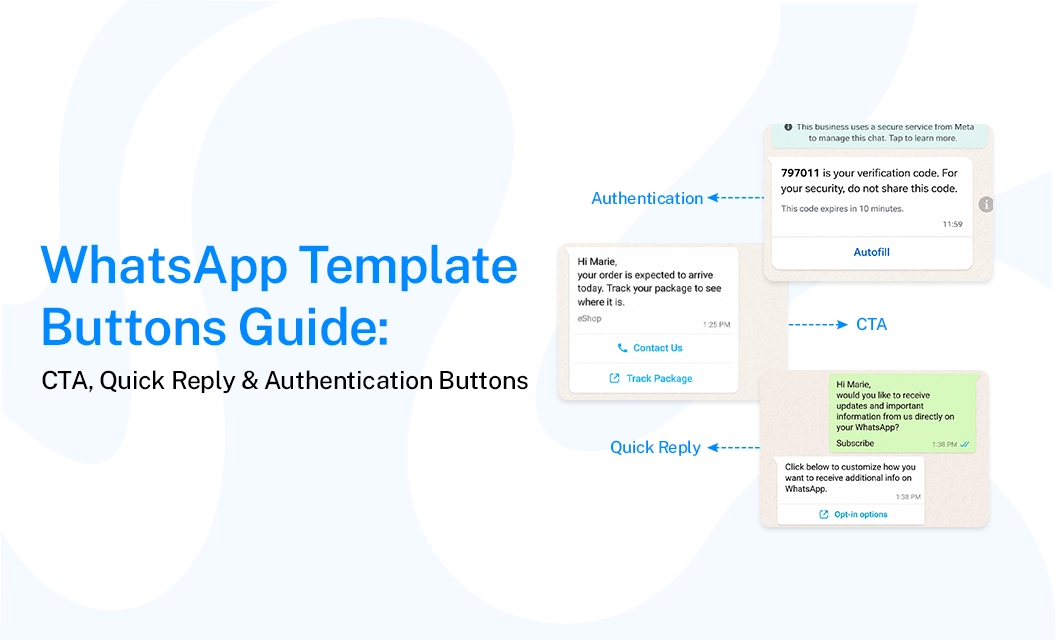
WhatsApp template buttons give customers a direct way to take action or respond after receiving a business message. The main button types used with WhatsApp templates include:
Call-to-Action (CTA) buttons,
Quick Reply buttons,
and authentication-related buttons.
Each serves a different purpose: CTA buttons take customers to a website or phone call, quick reply buttons let them respond with a predefined option, and authentication templates support one-time passcode use cases.
The 3 WhatsApp Template Button Types
The important distinction is that WhatsApp Flows are not simply another button type. A button can act as an entry point to a flow, but the flow itself is a separate interactive experience.
CTA Buttons: When to Use Them
What's the difference between a visit website and a call phone number CTA button?
A Visit Website button opens a specified URL in the user's browser, useful for order pages, forms, or landing pages, and it can be static or dynamic (personalized per recipient). A Call Phone Number button opens the device's dialer to a fixed number you set at template creation; it can't be personalized per user and can't point to a WhatsApp Business API number itself.
CTA buttons are best when the action needs to happen outside the chat—visiting a page, calling a number, or completing a task on your website. A template can include up to two URL buttons and one phone number button, but URL and Quick Reply buttons must be grouped separately, not mixed in alternating order.
Quick Reply Buttons: When to Use Them
Quick Reply buttons work when you want the customer to respond without typing—confirming an appointment, choosing yes/no, or opting out of marketing messages. Each tap sends a fixed text string back to your business as a message, which is useful for triggering automated flows or WhatsApp broadcast follow-ups.
A template can include up to 10 quick reply buttons. If a template shows more than three buttons total, WhatsApp displays only the first two, with a "See all options" button revealing the rest—so put your most important buttons first.
Authentication Buttons: What Makes Them Different
Authentication buttons only appear inside templates created under the Authentication category, and they exist specifically to deliver one-time passcodes (OTPs) for logins and identity verification. The Copy Code button copies the code to the user's clipboard; some integrations support an autofill variant that inserts the code directly.
Can authentication buttons be combined with CTA or quick reply buttons?
No. Authentication (Copy Code / OTP) buttons must be used alone and cannot be mixed with Quick Reply or CTA buttons in the same template. This is a hard rule—combining them will cause the template to fail validation or get rejected, not just displayed incorrectly.
Template Buttons vs. WhatsApp Flow Components
Template buttons and WhatsApp Flow components solve different problems, and mixing them up leads to the wrong feature choice.
Template buttons (CTA, Quick Reply, and Authentication) live inside a single message template. They perform one simple action—open a link, call a number, send back preset text, or copy a code. They're reviewed and approved as part of the template itself.
WhatsApp Flows, by contrast, open a structured, multi-step in-app form—useful for bookings, multi-field sign-ups, or surveys that need more than a single tap. If your use case needs the customer to fill in several fields or navigate multiple screens without leaving WhatsApp, that's a WhatsApp Flows use case, not a template button.
Quick rule: if the interaction is a single tap with a single outcome, use a template button. If it requires multiple steps or data entry, use a flow.
Common Button Setup Mistakes
Mixing Quick Reply and CTA buttons without grouping them by type
Adding more than 2 URL buttons or more than 1 phone number button
Trying to combine a copy code/OTP button with any other button type
Using a raw, unverifiable URL instead of a proper CTA "Visit Website" button
Assuming a voice call and phone number button can coexist—most platforms only allow one or the other
Forgetting that buttons beyond the third are hidden behind "See all options," and placing the least important button first
Conclusion:
Choosing the right WhatsApp template button comes down to what you need the customer to do next: use CTA buttons for outside actions like visiting a page or calling a number, Quick Reply buttons for fast in-chat responses, and Authentication buttons only for OTP verification inside Authentication-category templates.
Once your button structure is right, build and test it directly against the WhatsApp API documentation before submission.
Frequently Asked Questions
Can I use both CTA and quick reply buttons in the same template?
Yes, as long as they're grouped by type—all CTA buttons together, then all Quick Reply buttons together (or vice versa). You cannot alternate between the two types in the button list.
What happens if a template has more than 3 buttons?
WhatsApp displays only the first two buttons in the delivered message. The rest are collapsed under a "See all options" button that the user has to tap to reveal.
Can I personalize a CTA button's URL for each recipient?
Yes, for Visit Website buttons—you can pass a dynamic variable into the URL to personalize it per recipient. Call Phone Number buttons, however, use a fixed number and can't be personalized this way.
Why can't I add an authentication button to my marketing template?
Authentication (Copy Code/OTP) buttons only work inside templates submitted under the Authentication category, and they must be used alone. Adding one to a marketing or utility template will fail validation.
Should I use a template button or a WhatsApp flow for a booking form?
Use a flow. Template buttons handle single-tap actions, but a booking form usually needs multiple fields or steps, which only a Flow can present within WhatsApp.
Build and manage your template buttons in one place — set them up in Emovur.