

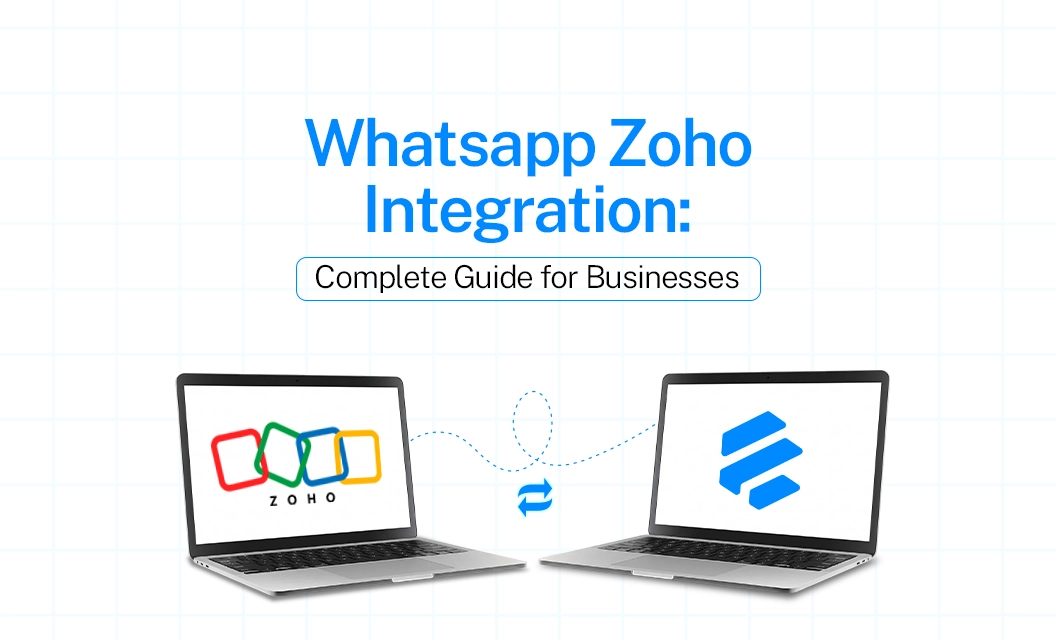
If your team already lives inside Zoho, chances are you've asked the same question a lot of growing businesses do: can WhatsApp just plug into what we're already using?
The good news is, Yes! Zoho WhatsApp integration is well-supported across most of the Zoho suite, and once it's set up, your WhatsApp conversations stop living separately.
Why Connect WhatsApp to Zoho in the First Place
Without integration, your team is switching between WhatsApp Web and Zoho all day — copying details, losing context, and missing follow-ups. A proper zoho crm whatsapp integration keeps every conversation attached to the right contact or deal, so sales and support reps see full context without hunting for it.
WhatsApp Integration Across the Zoho Suite
Zoho isn't one single app, so integration looks a little different depending on which product you're connecting:
Zoho CRM: The most common setup. WhatsApp integration with Zoho CRM lets you send and receive messages directly from a lead or contact record, log conversations automatically, and trigger workflows off WhatsApp activity.
Zoho Desk: A whatsapp desk integration turns WhatsApp into a proper support channel — tickets get created from incoming messages, and agents can reply without leaving the helpdesk.
Zoho Books: Zoho Books WhatsApp integration is typically used for sending invoices, payment reminders, and receipts directly to a customer's WhatsApp instead of email.
Zoho Bigin: For smaller teams, Zoho Bigin WhatsApp integration brings the same contact-linked messaging to Zoho's lightweight CRM.
Zoho Creator: Custom Zoho Creator apps can also trigger WhatsApp messages, useful for businesses running bespoke workflows outside the standard CRM.
How the Integration Actually Works
Most setups rely on a WhatsApp Business API provider connecting to Zoho, either through a native marketplace extension or a webhook-based integration. The provider handles the WhatsApp side; sending, receiving, and template approval,
while Zoho handles the contact, ticket, or invoice record. Some businesses also add a Zoho WhatsApp chatbot on top, so common questions get answered automatically before a message ever reaches an agent.
Setup Checklist
A few things to sort out before going live:
Confirm which Zoho product(s) you need connected, CRM, Desk, Books, or more than one.
Choose a WhatsApp Business API provider that offers a Zoho-compatible integration.
Map out which events should trigger a WhatsApp message (new lead, ticket reply, invoice due).
Test the connection with a small contact segment before rolling it out fully.
Conclusion
WhatsApp Zoho integration turns scattered chats into a proper part of your workflow — every conversation attached to the right record, wherever it happens in Zoho. The setup is straightforward once you've picked the right WhatsApp API partner for the job.
FAQs
Can I integrate WhatsApp with Zoho CRM directly?
Yes, with a WhatsApp Business API provider that offers a Zoho CRM integration, messages, contact records, and workflows stay connected without manual copy-pasting.
Does Zoho Desk support WhatsApp as a support channel?
Yes. A Zoho Desk WhatsApp integration turns incoming messages into tickets, so agents can reply from the helpdesk instead of switching to WhatsApp Web.
Can I send invoices over WhatsApp using Zoho Books?
Yes. Zoho Books WhatsApp integration is commonly used to send invoices, payment reminders, and receipts straight to a customer's WhatsApp.
Is there a WhatsApp integration for Zoho Bigin?
Yes, smaller teams using Zoho Bigin can get the same contact-linked WhatsApp messaging available in Zoho CRM, scaled for Bigin's simpler setup.
Do I need a chatbot for Zoho WhatsApp integration to work? No, a chatbot is optional. Many businesses start with basic message logging and routing, then add a Zoho WhatsApp chatbot later to automate common questions.