


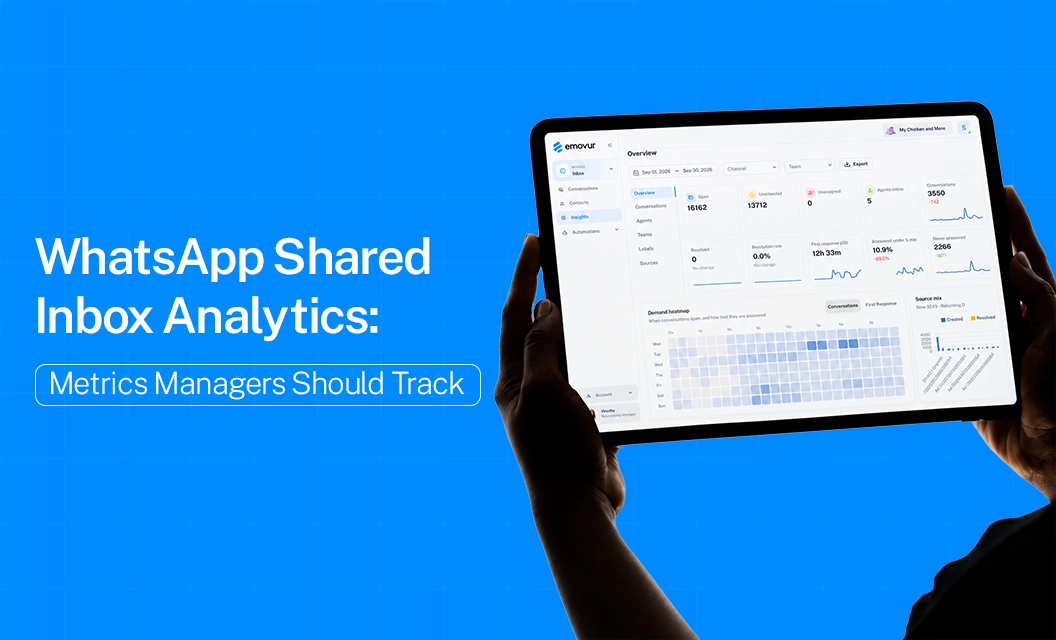
If you manage a WhatsApp support or sales team, tracking your team’s performance is harder than it looks. Chats come in all day, agents handle many customers at once, and it is not always clear who owns which chat.
By evening, you cannot say who replied fast, who got stuck and which chats were never answered. Without data, managers rely on guesswork or on what agents tell them. That makes it hard to spot weak areas, coach the right person or plan shifts properly. WhatsApp shared inbox analytics fixes this.
It shows each agent’s assigned chats, resolved chats, response time and resolution time in one place, so you can judge performance on facts, not opinions. In this guide, we break down what to track and how to read it.
Which KPIs should managers track in a WhatsApp shared inbox?
As a team lead or manager, keep track of these six essential team performance KPIs, all accessible through Emovur’s Inbox.
Step-by-Step: Reading Your WhatsApp Inbox Data to Review Team Performance
Open the Overview tab first: Set your date range (the default is the last 30 days) and check Never answered, Unassigned and Unattended. These are your urgent fixes.
Read the demand heatmap: It shows when chats peak. Match your shifts to those hours.
Go to the Agents tab: Compare assigned chats, resolved chats, and first response and resolution times. Look at the median, not just the average. One stuck chat can make an average look worse than the agent’s real performance.
Compare teams: The Teams tab shows the same numbers per team, so you can see whether sales or support is carrying the load.
Check Labels and Sources: They show which topics and channels bring the most chats, so you know what to train agents on.
Export to CSV: for weekly reports or deeper analysis.
Important note: never rank agents on speed alone. An agent handling tough chats will have slower numbers than one answering simple questions. Read speed together with resolved count.
And these Features are solely based on Emovur’s inbox it can vary based on the provider you choose, if you want to know more about how Emovur’s shared inbox works read Multiple agents on whatsApp business API: how it works
Common Mistakes Managers Make When Tracking Team KPIs
Having the data does not guarantee you use it well. These are the habits that quietly make inbox analytics less useful.
Ready to track your team’s KPIs with real data? Emovur’s shared inbox gives you agent, team and label-level insights without any spreadsheets. Explore WhatsApp Business API to get started.
Frequently asked question?
What is the most important KPI in a WhatsApp shared inbox?
First response time. Customers on WhatsApp expect quick replies, so track p50 and p90 together.
Can I see performance by team or agent?
Yes. The Agents and Teams tabs show assigned, resolved, and response and resolution times. If several agents work on the same number, read how to manage multiple WhatsApp agents without duplicate replies so your numbers stay clean.
How often should managers review inbox analytics?
Check the Overview daily for unanswered chats and do a deeper review weekly.
What is the difference between p50 and p90 response time?
p50 is the middle value, so half of your replies are faster. p90 shows how long your slowest 10% of customers wait.
Can I export the data?
Yes. Insights data can be exported as CSV. To see Insights live, check the WhatsApp Business API pricing.