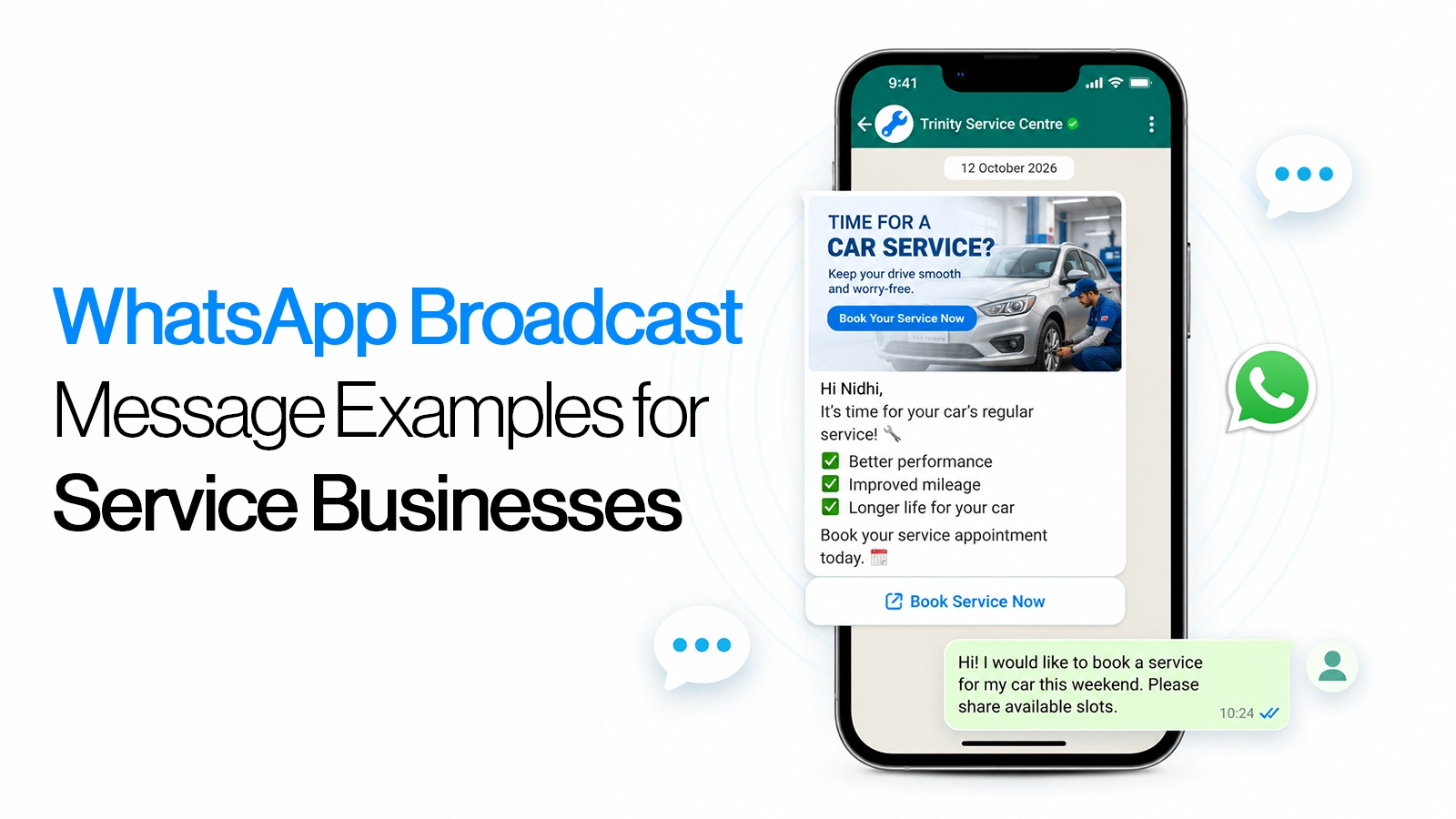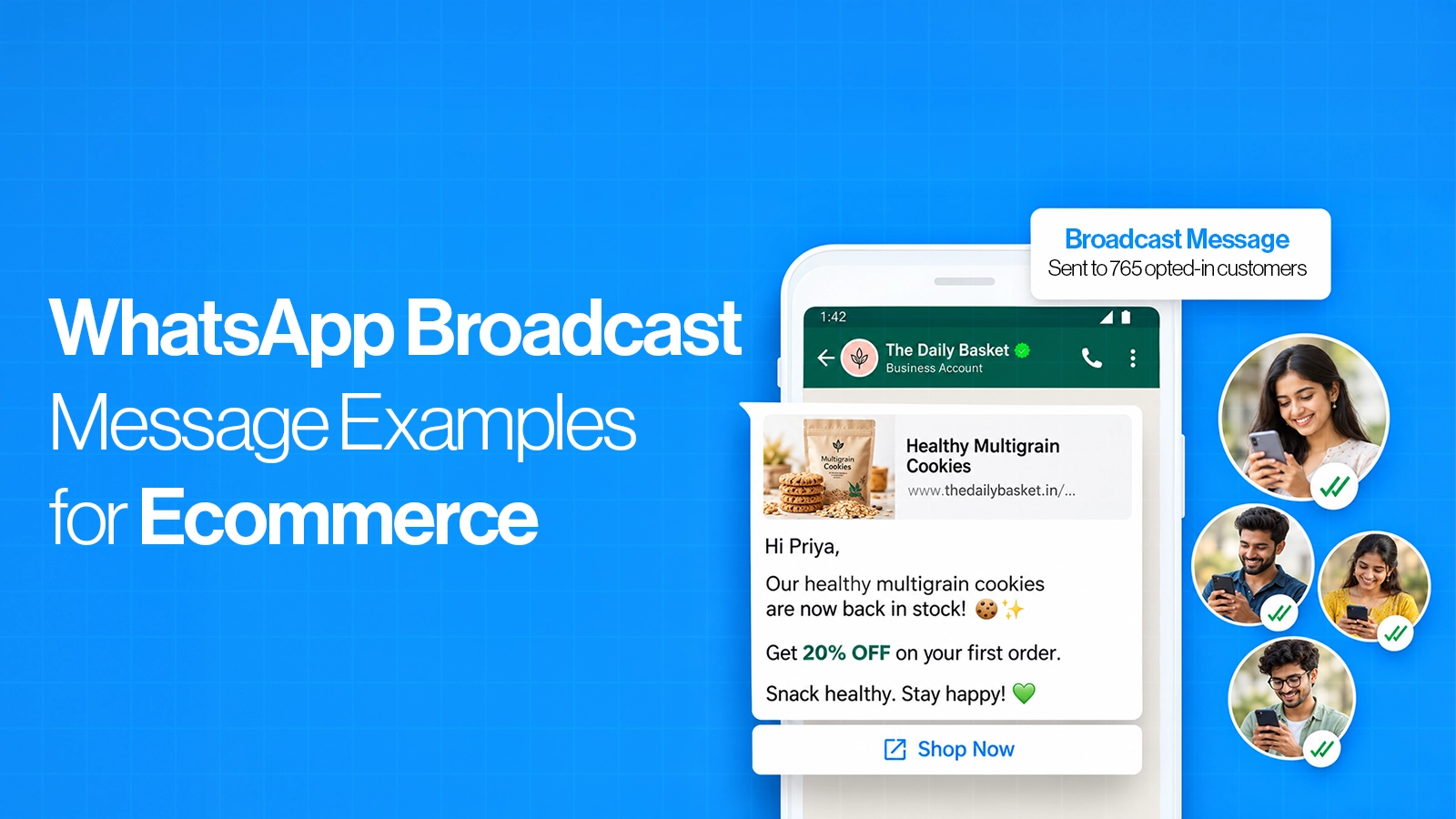


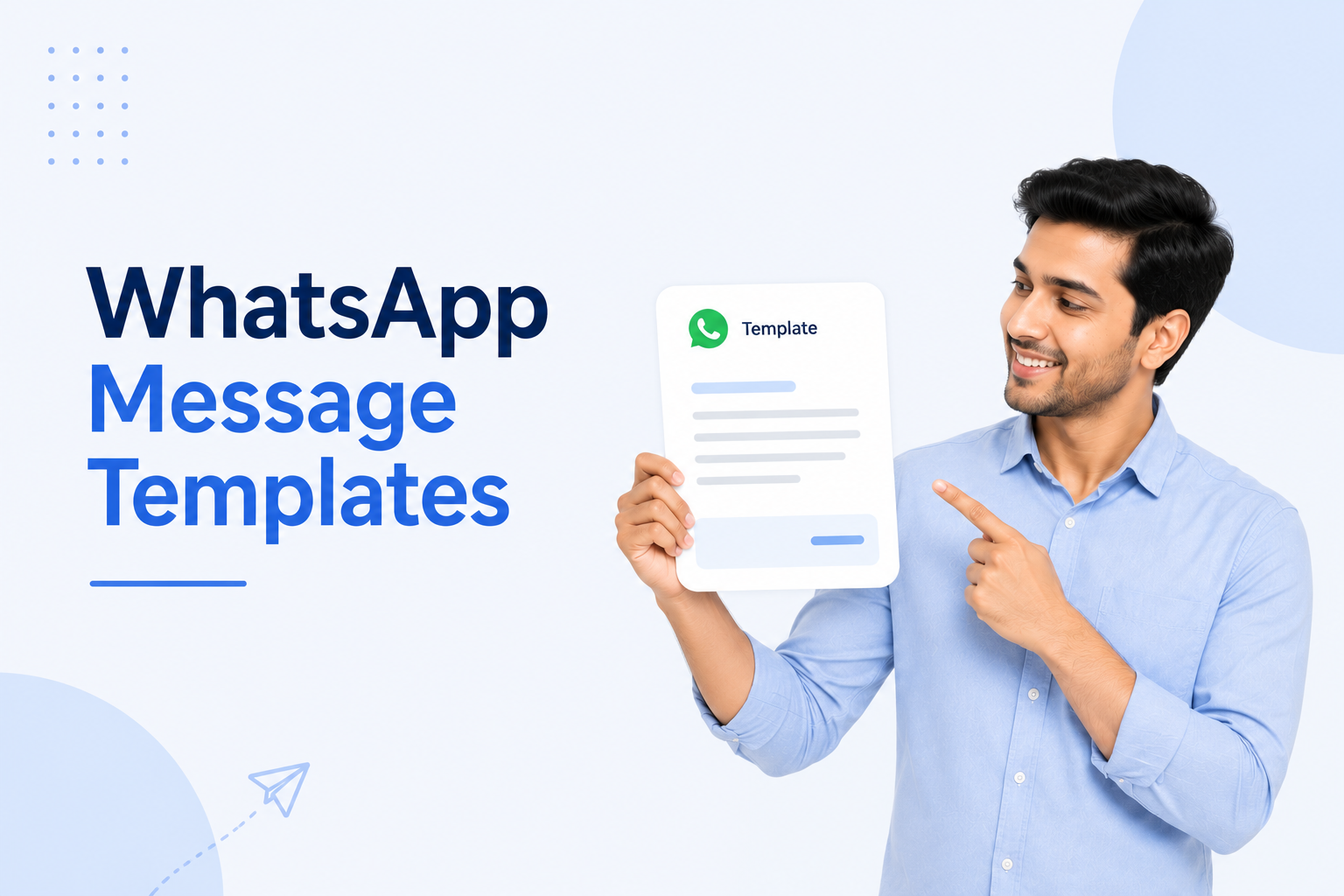
WhatsApp message templates are pre-approved messages businesses use for outbound communication such as promotions, order updates, reminders and authentication. In 2026, Meta reviews templates based on category, purpose, formatting, variables, policy compliance and customer relevance. Most approval problems come from choosing the wrong category, mixing promotional content into utility messages, using unclear variables or submitting spam-like copy. Indian businesses can improve approval rates by keeping each template focused on one purpose, using clear fixed text and testing templates before broadcasts.
What Is a WhatsApp Message Template?
A WhatsApp message template is a predefined message format submitted for Meta approval before it is used for applicable business-initiated WhatsApp communication. Templates can contain fixed text, variables, media and supported buttons, depending on the template type.
Meta currently groups WhatsApp templates into three categories: Marketing, Utility and Authentication. The selected category affects how Meta reviews the template and can also affect messaging cost.
Businesses commonly use WhatsApp Business API templates for:
Marketing campaigns: Product launches, offers, event promotions, customer re-engagement and promotional broadcasts.
Utility communication: Order confirmations, shipping updates, appointment reminders, payment updates and account notifications.
Authentication: OTPs, login verification, password recovery and identity verification.
Campaign personalisation: Customer names, order IDs, dates, amounts or other approved dynamic values.
Interactive communication: Supported call-to-action buttons, quick replies and other template components.
Businesses planning customer campaigns can use WhatsApp Broadcast and Bulk Messaging once the required templates are approved.
Step 1: Choose the Correct WhatsApp Template Category
Wrong categorisation is one of the easiest ways to create approval problems. Meta evaluates what the message actually does, not simply the category selected during submission.
Marketing Templates
Use a WhatsApp marketing template when the primary purpose is promoting, selling, re-engaging or encouraging a commercial action.
Typical marketing templates include:
Promotional offers and discounts
New product launches
Event invitations
Abandoned-cart reminders
Customer re-engagement
Product recommendations
Seasonal campaigns
Renewal messages containing incentives
If a template contains both transactional information and promotional content, Meta can treat it as marketing.
Utility Templates
A WhatsApp utility template should relate directly to a customer action, transaction or existing service relationship and remain non-promotional.
Typical utility templates include:
Order confirmations
Shipping notifications
Appointment reminders
Payment confirmations
Refund updates
Account alerts
Booking changes
Transaction-related feedback requests
A utility template should answer a practical customer need. Adding an offer, discount or unrelated product recommendation can move it into the marketing category.
Authentication Templates
Authentication templates are specifically designed for identity verification and one-time passcodes.
Common authentication use cases include:
Login verification
Account registration
Password recovery
Transaction verification
Identity confirmation
Authentication templates have stricter formatting requirements. Meta-defined authentication formats restrict promotional content and several other message components.
Step 2: Keep One Clear Purpose Per Template
Templates become harder to classify when businesses try to make one message perform several jobs.
Consider a shipping notification that ends with a discount for another purchase. The message begins as utility communication but introduces a promotional objective, so it no longer remains purely transactional.
Before submission, ask:
What triggered this message? Customer purchase, appointment, login, campaign or business promotion?
What should the customer understand? Keep the information directly connected to that trigger.
What action should they take? Use one clear next step where possible.
Is there promotional language? If yes, evaluate it as marketing rather than utility.
Would the message make sense without customer context? Generic promotional messages usually belong to marketing.
This simple check improves WhatsApp template categorisation and reduces avoidable reclassification.
Step 3: Write Enough Fixed Text Around Variables
Variables are useful for personalisation, but the reviewer still needs to understand the message without relying entirely on dynamic content.
A weak template might look like:
“Hi {{1}}, your {{2}} is {{3}}.”
The meaning depends almost completely on variables.
A clearer version would be:
“Hi {{1}}, your order {{2}} has been shipped. Expected delivery: {{3}}.”
The second version makes the message purpose obvious.
When using WhatsApp template variables:
Start numbering from {{1}}: Continue sequentially with {{2}}, {{3}} and so on.
Give every variable context: Customers should understand what the inserted value represents.
Avoid excessive variables: Fixed text should remain meaningful.
Avoid adjacent placeholders: Back-to-back variables can make the template unclear.
Provide realistic sample values: Submission systems commonly require examples so Meta can understand how placeholders will be used.
Do not use variables to hide promotional intent: Category is based on the actual purpose of the completed message.
Current template-formatting guidance also warns against beginning or ending the complete message with a variable.
Step 4: Follow WhatsApp Template Naming and Formatting Rules
Simple formatting errors can stop a valid message before its business purpose is even evaluated.
Check these basic template rules before submission:
Template name: Use lowercase letters, numbers and underscores, such as order_delivery_update.
Avoid spaces in names: Use underscores instead.
Variable sequence: Do not skip from {{1}} directly to {{3}}.
Balanced brackets: Every placeholder should use the proper paired format.
Body formatting: Avoid unnecessary or excessive line breaks.
Headers and footers: Follow the restrictions for the selected template component.
Language: Submit the correct language version instead of mixing languages unpredictably.
Sample data: Provide realistic examples for variables, URLs or media where required.
A descriptive name such as appointment_reminder is also easier to manage than template_27.
Step 5: Avoid Content That Commonly Causes Rejection
Meta reviews templates against WhatsApp Business and commerce policies in addition to technical formatting.
Common content risks include:
Misleading claims: Messages should not create false expectations about an offer, transaction or business.
Spam-like copy: Aggressive, repetitive or suspicious messaging can create approval and quality issues.
Restricted commercial content: Templates must follow WhatsApp's applicable commerce and messaging policies.
Sensitive-data requests: Avoid asking customers to provide highly sensitive identifiers such as complete payment-card or government-ID details through templates.
Unclear business identity: Customers should be able to understand who is contacting them.
Unrelated messaging: The message should align with the reason the customer is receiving communication.
Duplicate templates: Repeatedly submitting essentially identical templates can create avoidable review problems.
Template approval does not guarantee permanent usability. Meta continues monitoring customer feedback and message quality after approval.
Why Was My WhatsApp Template Rejected?
A WhatsApp template rejected by Meta usually indicates either a category problem, formatting issue, policy concern or insufficiently clear message purpose.
Start with the rejection reason shown in WhatsApp Manager or your WhatsApp API platform rather than immediately creating several new versions.
Fix the cause rather than changing random words and resubmitting.
How to Fix a Rejected Marketing Template
Marketing templates have broad use cases, but they still need clear customer relevance and compliant copy.
If a marketing template is rejected, check:
Business identity: Make the sender clear.
Offer clarity: Explain exactly what is being promoted.
CTA relevance: The button or next step should match the message.
Variables: Avoid using dynamic fields that hide the real offer.
Excessive urgency: Remove unnecessary pressure or spam-style wording.
Policy eligibility: Confirm that the promoted product or service can be marketed through WhatsApp.
Audience expectation: Template approval and customer opt-in are separate requirements.
For consent and customer-list preparation, use the existing DPDP and WhatsApp Marketing guide rather than trying to solve subscriber compliance inside the template itself.
How to Fix a Rejected Utility Template
Utility templates create frequent classification problems because businesses sometimes insert marketing language into transactional messages.
A genuine utility message should remain tied to a customer-initiated transaction, request or service.
Keep utility templates focused on:
Order status
Booking status
Payment status
Appointment information
Account information
Service alerts
Transaction-related actions
Remove:
Discount offers
Cross-sell recommendations
New-product promotions
Unrelated website offers
Generic re-engagement language
Incentives designed to create a new purchase
For example:
Utility: “Your service appointment is confirmed for {{1}} at {{2}}.”
Mixed intent: “Your service appointment is confirmed for {{1}}. Book another service today and save 20%.”
The second message contains a promotional objective and should not be treated as a straightforward utility template.
How Long Does WhatsApp Template Approval Take?
Meta reviews many templates quickly, and current platform documentation indicates that most can be processed within minutes. Some reviews can take longer, with providers documenting review windows of up to approximately 24 hours depending on verification and review conditions.
Businesses should therefore avoid creating templates immediately before a major campaign.
A safer campaign workflow is:
Create templates before campaign setup is complete.
Submit them early enough for review.
Confirm the final approved category.
Test variables with sample customer records.
Test CTA buttons and URLs.
Check the final rendered message on a device.
Only then schedule the full broadcast.
This prevents template approval from becoming the bottleneck on campaign day.
Approved Does Not Mean Permanently Safe
Meta continues evaluating approved templates using customer feedback and engagement signals. Current documentation lists quality states including Quality Pending, High, Medium and Low. Templates receiving repeated negative feedback may eventually be paused or disabled.
Signals that can affect WhatsApp template quality include:
Customer blocks
Spam reports
Negative feedback
Poor engagement
Repeated irrelevant messages
Messaging audiences that did not expect the communication
A template can therefore pass Meta approval and still perform poorly after launch.
This is why WhatsApp template quality rating should be monitored alongside delivery, reads, replies and conversions.
What Happens When a WhatsApp Template Is Paused?
A paused template cannot be used temporarily. Meta uses pausing to protect customers and sender quality when a template receives repeated negative feedback.
Current documentation describes escalating pauses of approximately three hours for the first instance and six hours for the second, with repeated quality problems potentially leading to permanent disabling.
If a template is paused:
Stop scaling it: Do not immediately replace it with nearly identical copy to the same audience.
Review audience relevance: Check whether recipients expected that campaign.
Review frequency: Customers may be receiving too many messages.
Inspect the copy: Remove misleading, aggressive or spam-like wording.
Review segmentation: A good template sent to the wrong audience can still create negative feedback.
Monitor after reactivation: A second quality drop indicates a deeper campaign problem.
Template quality is partly a copy issue and partly an audience-quality issue.
Build Approval-Ready Templates Before Creating the Broadcast
Businesses often build the campaign first and think about template approval last.
Reverse the sequence.
A better WhatsApp campaign preparation process is:
Define the campaign purpose.
Select Marketing, Utility or Authentication.
Draft one clear message purpose.
Add only necessary variables.
Add relevant CTA buttons.
Add realistic sample values.
Submit for Meta approval.
Confirm the approved category.
Test the final template.
Add it to the relevant campaign.
Once approved, the template can be used inside a structured WhatsApp Broadcast and Bulk Messaging workflow. Emovur's current broadcast platform supports approved templates, dynamic customer variables, media, links, CTA buttons, audience segmentation and campaign scheduling.
A Practical WhatsApp Template Pre-Submission Checklist
Before clicking submit, check the template once against this list.
Purpose
Is there one obvious reason for sending the message?
Does the category match that purpose?
Is promotional content separated from utility communication?
Copy
Is the business or context identifiable?
Is the wording specific rather than generic?
Is the CTA directly connected to the message?
Variables
Are placeholders sequential?
Does each variable have clear context?
Are sample values provided?
Is there enough fixed text?
Compliance
Does the message comply with WhatsApp Business and commerce policies?
Does it avoid sensitive-data requests?
Is the message appropriate for the audience that will receive it?
Campaign
Is the approved category confirmed?
Have buttons and links been tested?
Has the rendered template been checked?
Is the audience properly segmented?
Build Templates for Approval and Customer Relevance
The best WhatsApp message templates in India in 2026 are not written simply to pass Meta review. They are written so customers immediately understand who is contacting them, why they received the message and what they can do next.
Use Marketing templates for genuine promotions and engagement, Utility templates for non-promotional customer actions and transactions, and Authentication templates for verification. Keep variables clear, avoid mixing objectives and monitor quality after approval.
For businesses ready to move approved WhatsApp Business API templates into segmented campaigns, use WhatsApp Broadcast and Bulk Messaging to manage customer groups, personalisation, templates, scheduling and campaign performance.
Start a Compliant Campaign with templates built for the correct category, clear customer context and reliable campaign delivery.