

Introduction
If you manage ads, WhatsApp Business API, or multiple Pages under one company, Meta will eventually ask you to verify your Business Portfolio. Skip it, and you'll hit messaging caps, ad spend limits, and blocked access to advanced tools.
Most guides on this topic list the same three documents, utility bill, business license, incorporation certificate — and stop there.
What they usually skip: which documents actually work by country, why 30–40% of first submissions get rejected, and what to do when your business doesn't have a "standard" document to upload. This guide covers all three.
What Business Verification Actually Confirms
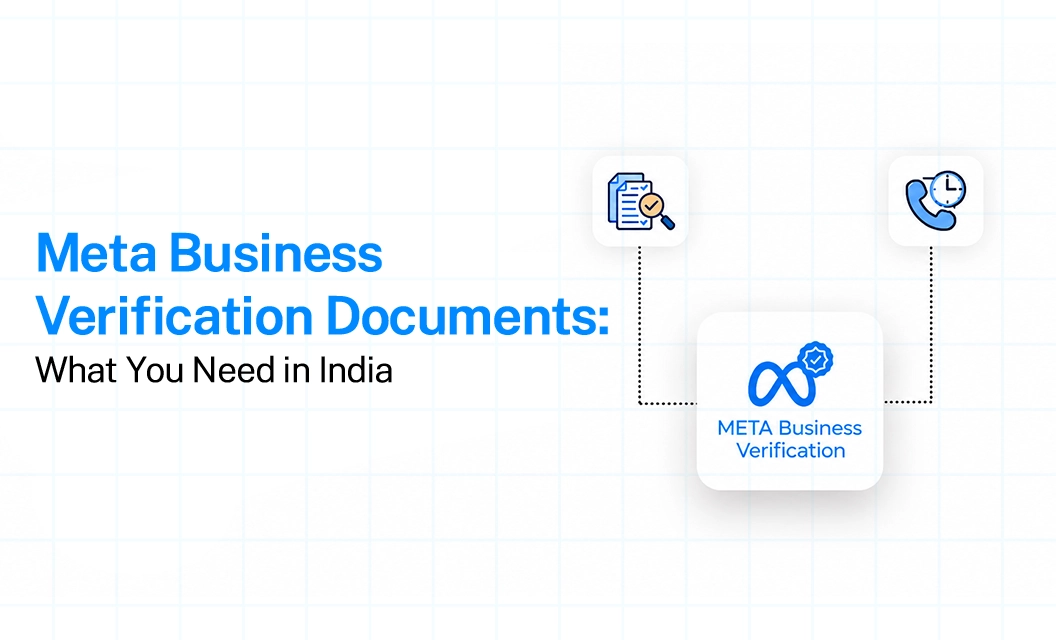
Business verification is Meta's check that your Business Portfolio belongs to a real, legally registered entity. It's separate from Domain Verification(which only proves you own a website) and from the paid Meta Verified for Business badge (which requires business verification as a prerequisite, not the other way around).
Documents Required for Business Portfolio Verification
Meta asks for documents that prove two things: your legal business name, and your business address or phone number. You typically need to submit 1–2 documents that together cover both.
Core document categories accepted globally
Certificate of Incorporation / Registration: proves legal name and registration
Business license or trade license: proves legal name and address
Tax registration document: proves legal name and tax ID (e.g., EIN in the US, VAT certificate in the EU)
Utility bill (electricity, water, phone — company name): proves address/phone
Business bank account statement: proves name and address
Document rules that get glossed over
Documents should generally be no more than 12 months old
Must be a clear, high-resolution scan or PDF — no screenshots of screenshots
Must be in an accepted language for your country, or accompanied by a certified translation
The document must not be edited or watermarked beyond the original issuer's formatting.
Country-Specific Documents
Accepted documents vary by country, and this is where most guides stay generic. A few examples worth calling out by name instead of just saying "check Meta's list":
India: GST Registration Certificate, Udyam/MSME Registration, Shop and Establishment License, Certificate of Incorporation (for Pvt Ltd/LLP), PAN card of the business
United States: EIN confirmation letter (SS-4), Articles of Incorporation, business license
Brazil: CNPJ card (Receita Federal)
Chile: RUT certificate
UAE: Valid UAE-issued trade license (must not be expired or issued outside the UAE).
Documents by Business Type
How to Submit Your Documents: Step by Step
Go to Business Settings > Security Center in your Business Portfolio
Under Business Verification, click Start Verification
Select your country and business type
Enter your legal business name, address, tax ID, and phone number — make sure this matches your documents
Choose a verification contact method (phone call, SMS, or domain verification)
Upload your supporting document(s) in the accepted format
Submit and wait — most reviews complete within 48 hours, though some take longer.
Common Rejection Reasons and How to Fix Them
Meta typically allows unlimited resubmissions;there's no penalty for trying again once the issue is fixed.
Conclusion
Getting your documents ready for Meta Business Verification is less about uploading as many files as possible and more about submitting the right official document with matching business information. Most importantly, check that your legal name, address and contact details match across Meta and your documents before submitting.
If you're setting up WhatsApp Business API, you can also explore Emovur's WhatsApp Business API solution and WhatsApp API pricing to understand the setup and ongoing costs.