

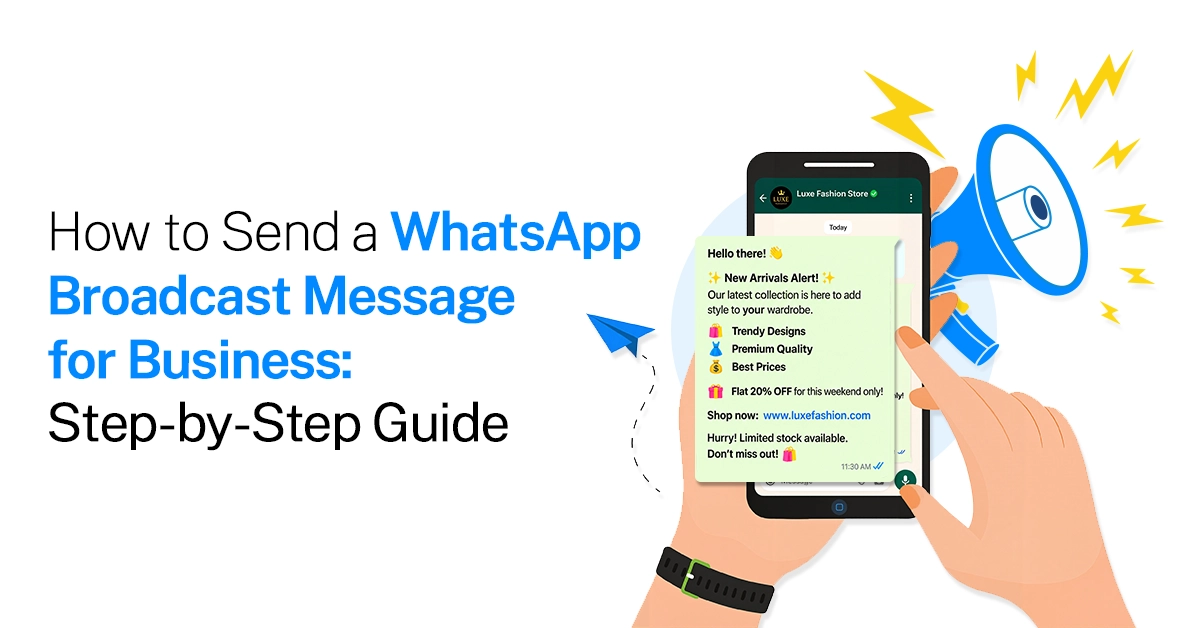
Sending a broadcast message on WhatsApp can be a simple way to reach many customers at once, but businesses need to use the right setup. If you want to send a WhatsApp broadcast message for business, you first need a WhatsApp Business setup that supports your use case, a customer list with proper consent, and approved message templates when required. The process is different from sending a message from a personal WhatsApp account.
This guide explains the steps clearly, what you need before sending, and what to check after your broadcast goes out.
What Does "Broadcast" Actually Mean on WhatsApp?
A WhatsApp broadcast message lets a business send the same message to multiple customers without creating a group chat. Each customer receives the message as an individual conversation.
For example, if you're sending a message:
“Our weekend sale starts tomorrow. Get up to 30% off selected products.”
The customer receives the message privately, and replies come back as individual conversations.
For businesses sending messages at scale, the process works differently from a small manual broadcast. The WhatsApp Business API can help businesses manage larger customer communication, automation, templates and team workflows.
What Do You Need Before You Could Send a Broadcast?
Before you create your first broadcast, get these basics ready.
Note: Skip any one of these and your broadcast either won't send, or it'll put your number at risk. We'll go through opt-in and templates in more detail below, since they trip up the most people.
How to Send a WhatsApp Broadcast Message for Business
Once your account and customer list are ready, you can begin creating and sending your WhatsApp broadcast. Start by confirming that your business profile, messaging permissions, and customer information are set up correctly.
Step 1: Get your WhatsApp Business account set up:
If you don't already have API access, you'll need to verify your business with Meta and connect a phone number. Most businesses do this through a provider rather than going direct, since it's faster to get running.
If you are still deciding which setup is right for you, learn more about the WhatsApp Business API and how it works for business messaging.
Step 2: Build Your Customer List the Right Way
Your customer list is one of the most important parts of a WhatsApp broadcast.
Don't simply upload every phone number your business has collected over the years. Your customers should know that they are agreeing to receive messages from your business.
You can collect customer opt-ins through places such as:
A website signup form
A checkout page
A lead form
An appointment form
A QR code
An in-store signup
A clear WhatsApp opt-in request
Important: Having someone's phone number does not automatically mean you should send them promotional WhatsApp messages. Keep your contact list permission-based and respect customers who choose not to receive further messages.
Step 3: Create Your WhatsApp Message Template
If you are sending a business-initiated message outside the applicable customer service window, you generally need to use an approved WhatsApp message template.
The template should match the purpose of your message. For example, a retail business might create a promotional template for a new collection, while a service business could create one for appointment reminders.
Keep the message easy to understand. Don't try to fit your entire offer, company introduction and product catalogue into one template. Before sending your campaign, check the template status and make sure the content matches the purpose for which it was created.
You can also refer to Emovur's WhatsApp message templates documentation for managing templates.
Step 4: Choose the Right Audience
Once your message is ready, decide who should receive it. This is where many businesses make mistakes. They create one message and send it to their entire customer database.
Instead, think about who will actually find the message useful, for example:
Customers who purchased recently
Customers who have not purchased recently
Customers interested in men's products
Customers interested in women's products
Customers who bought during a previous sale
Simple rule: Don't ask, “How many people can I message?”
Ask, “Who actually needs this message?”
Step 5: Personalize the Message Where It Makes Sense
You don't need to make every message completely different for every customer. Small details can make a broadcast feel much more relevant.
For example, scenario 1: Your order is ready for pickup.
Scenario 2: Hi Rahul, Your order #4582 is ready for pickup.
The second message gives the customer useful information without making the message complicated. But always check that the information being inserted is correct before sending the campaign.
Step 6: Send a Test Message First
Before sending your broadcast to hundreds or thousands of customers, test it. Send the message to yourself or another internal test number and check exactly how it appears on WhatsApp.
Look for simple problems that are easy to miss in the dashboard:
Spelling mistakes
Broken links
Incorrect customer names
Missing variables
Wrong images
Incorrect buttons
Formatting problems
Outdated offer details
Wrong dates or prices
For example, if your campaign says “Offer ends Sunday”, make sure the actual offer also ends on Sunday.
This step takes only a few minutes but can save you from correcting a mistake after the message has already reached your customers.
Step 7: Send or Schedule Your Broadcast
Once you have checked the message and audience, you are ready to send the broadcast. If your platform supports scheduling, choose a time when your customers are most likely to read and respond.
The best time depends on your business.
For example:
A restaurant could send a lunch offer before lunchtime.
A salon could send appointment reminders before the scheduled appointment.
An e-commerce store could send a weekend offer on Friday.
An event company could send a reminder shortly before an event.
Avoid sending messages at random times simply because the campaign is ready.
Step 8: Track What Happens After Sending
Your work doesn't end when the broadcast is sent; check how customers responded to the campaign.
Suppose you send a promotion to 5,000 customers, and 4,800 messages are delivered. That sounds positive, but if only five customers make a purchase, the campaign may still need improvement.
Step 9: Respond to Customers Who Reply
A WhatsApp broadcast can start individual customer conversations; if any customers start the conversation with the business, never leave the messages unanswered. Always make sure your sales or support team is aware that the campaign is going out and is ready to handle replies.
This is one of the biggest differences between simply sending a bulk message and running a useful WhatsApp campaign. The broadcast starts the conversation; your team needs to take it forward.
Tip: For businesses with multiple agents, a shared inbox and automated workflows can make this easier to manage.
Step 10: Review the Campaign and Improve
After the campaign, don't just record the number of messages sent. Look at what customers actually did.
For example, if many customers read the message but very few clicked the link, the problem may not be delivered. The offer, message, or call to action may need improvement.
Use what you learn from one campaign to make the next campaign better.
Are you still confused about choosing the right template category?
Every template you submit gets sorted into one of three buckets, and picking the wrong one causes more problems than people expect.
Can I label a marketing message as "utility" to pay less?
No — don't try this. Meta's review system checks the actual content, not just the label you pick, and will re-categorize anything promotional as marketing regardless of what you submitted it as. Getting caught doing this repeatedly can hurt your quality rating, which affects how many people you're allowed to message at all.
You can find full guidance on formatting and getting templates approved faster in our WhatsApp message templates guide.
Opt-In: The Rule That Decides If Your Broadcast Works
This is the one rule that matters more than anything else in this guide, so it gets its own section.
Can I send a WhatsApp broadcast to people who haven't messaged me first?
Only if they've given clear, provable opt-in; a customer messaging you once doesn't automatically mean you can add them to a marketing list. You need a specific, recorded action: a checkbox, a signup form, a keyword text, or a clear verbal or written agreement. Meta puts the responsibility on you to prove consent, not on the customer to prove they didn't agree.
A few things that do not count as opt-in, even though people assume they do:
Someone bought something from you once
You found their number on an invoice or delivery label
They messaged you a single time about a totally different issue
They're a "past customer" from years ago with no recent contact.
And a few things that do:
A checkbox at checkout, clearly stated
A signup form on your website or in-store
A "click to WhatsApp" ad they tapped on
A keyword they texted you to join a list.
Important: Always give people an easy way out, an opt-out option in every marketing template, and a working process for when someone replies "STOP." Ignoring opt-outs is one of the fastest ways to get your number's quality rating downgraded.
WhatsApp Broadcast Pre-Send Checklist
Run through this before every broadcast, not just your first one.
Every contact on this list has a recorded, provable opt-in
The template is approved and in the right category (marketing vs. utility)
The message includes a personalization variable, not just generic text
There's a clear opt-out option in the message
You've sent a test message to yourself and checked it looks right
Your audience is segmented, not one giant undivided list
You've checked current WhatsApp API pricing so the cost of this send isn't a surprise
You (or your team) are ready to reply quickly once responses start coming in
What Happens If You Get This Wrong
What happens if I broadcast to people who didn't opt in? Meta relies on user reports and automated detection to catch this. If enough recipients report or block you, your quality rating drops, which shrinks how many people you're allowed to message per day. Keep it up, and your number can be restricted or banned entirely, and there is no appeal process that gets around missing consent, so it's worth getting this right from message one rather than fixing it after a ban.
Common Mistakes to Avoid When Sending WhatsApp Broadcasts
A broadcast can fail even when the technical setup works correctly. Most problems come from how the campaign is planned.
1. Sending the same message to everyone
A customer who just purchased from you may not need the same message as someone who has not purchased in six months.
Better approach: Create smaller customer groups based on their relationship with your business.
2. Sending too many promotional messages
Customers can quickly lose interest if every message is an offer. Sending only promotional content may make your messages feel repetitive and cause customers to ignore future updates.
Better approach: Send messages that are useful, timely and relevant. Mix offers with helpful updates, reminders, tips or information that customers will genuinely value.
3. Writing a long message
Customers are usually scanning WhatsApp messages quickly. Long paragraphs can make it difficult for them to understand the main point.
Better approach: Lead with the main point and give one clear action. Use short sentences and tell customers exactly what you want them to do next.
4. Ignoring customer replies
A broadcast may create many replies. If nobody is available to respond, customers may feel ignored and lose trust in your business.
Better approach: Make sure someone is ready to handle responses after the broadcast goes out. Prepare answers for common questions so your team can respond quickly.
5. Looking only at delivery numbers
Delivery tells you that the message reached customers. It does not show whether they read, clicked, or acted on the message.
Better approach: Track replies, clicks, bookings, purchases, or another business result. Use these results to understand what worked and improve your next campaign.
Final Takeaway:
Learning how to send a broadcast message on WhatsApp is only the first step. A successful business broadcast needs the right audience, customer consent, a clear message, approved templates where required, proper testing, and a way to measure the result.
Start with a small customer segment and one clear goal instead of sending the same message to your entire database. As your campaigns grow, tools for automation, team management, and reporting can make the process easier. If you want to move beyond basic broadcasts and manage business messaging at scale, Explore Emovur WhatsApp Broadcast ..
TABLE OF CONTENTS