

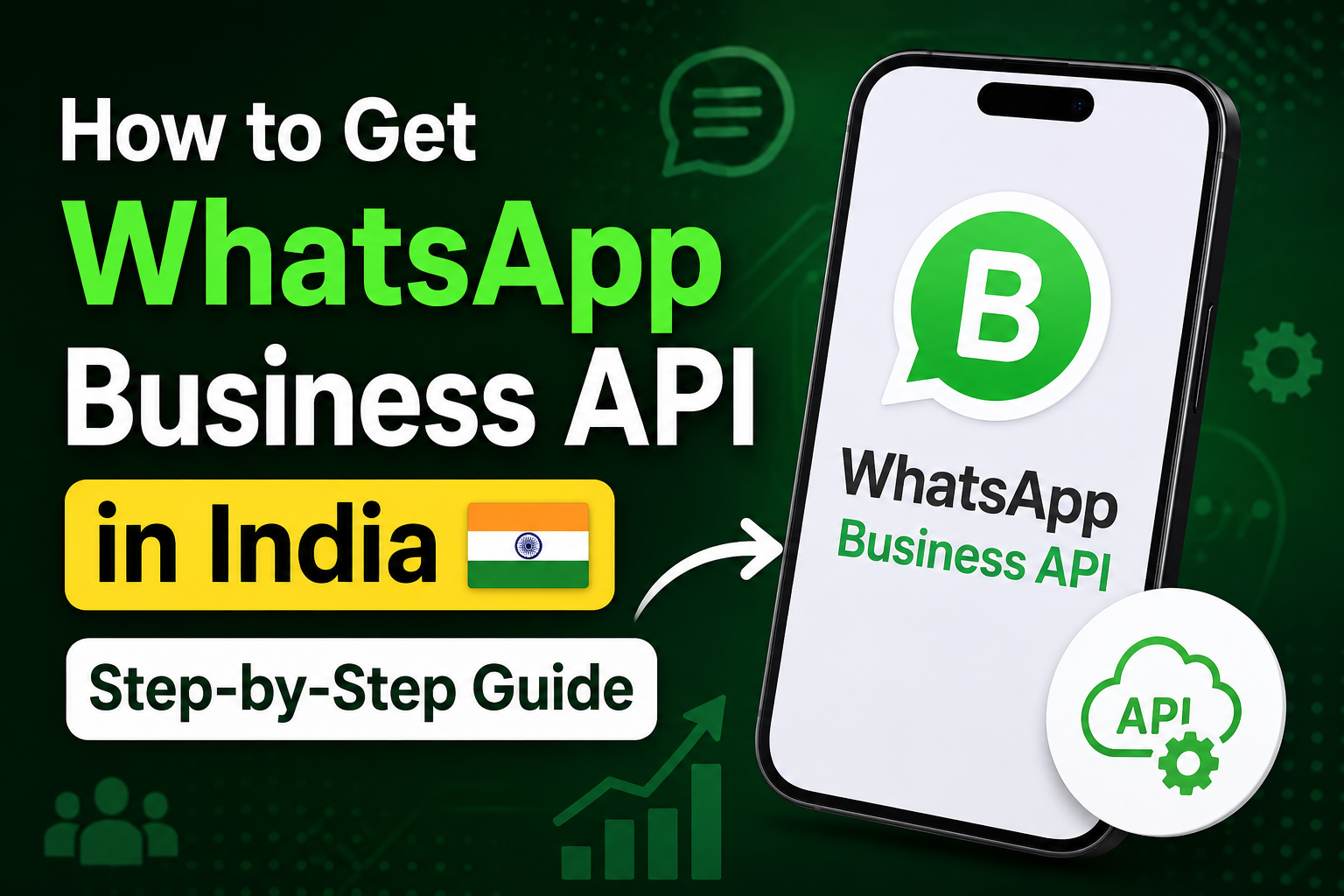
Getting WhatsApp Business API in India takes five steps — Meta Business Manager setup, choosing a BSP, business verification, phone number registration, and template approval. Most businesses with their documents ready are live in under 24 hours. Below is exactly what to do at each step.
If you’re missing any of these five things before
you start, sort them first — not having them is the single biggest cause of
setup delays:
•
A Meta Business Manager account
— free to create at
business.facebook.com
•
Registered business proof
— GST certificate or incorporation
document
•
A phone number not linked to any WhatsApp account
— personal or Business App both block
registration
•
A working website
— with your business name, contact page,
and Privacy Policy visible
•
Your exact business name and address
— must match across all documents and
Meta profile
Step 1: Set Up Meta Business Manager
Meta Business Manager is where your WhatsApp API
identity is anchored. Everything — your phone number, your templates, your
verification — lives here. Get this right before moving forward.
If you’re creating one from scratch:
1.
Go to business.facebook.com and click
Create Account
2.
Use your official business email, not personal
Gmail
3.
Enter your business name exactly as it appears
on your GST or incorporation document — not your trading name, not a short
form
4. Submit business verification with one of: GST certificate, incorporation document, official utility bill, or business bank statement
Timeline: 1–3
business days. The most common reason it takes longer: the business name in
Meta doesn’t match the legal document exactly. This is easy to fix but costs
you 2–3 days if it happens.
Step 2: Choose a Business Solution Provider (BSP)
A BSP is a Meta-certified company that gives you
access to the WhatsApp API, along with a dashboard to manage everything —
message campaigns, automation flows, agent inbox, analytics. You need a BSP
unless you’re building a self-hosted technical integration, which requires a
dedicated engineering team.
The BSP you choose will affect your costs every
single month. Evaluate on these five things:
1.
Markup on Meta conversation fees — most
BSPs charge 15–30% above Meta’s official rates. At 10,000 conversations a
month, that’s ₹1,000–2,000 extra every month. Emovur charges 0% markup — you
pay exactly what Meta charges.
2.
Onboarding support — some
BSPs give you a setup guide and leave you to it. Others have a team that walks
you through every step. If this is your first time, support makes a significant
difference in your go-live timeline.
3.
Template approval help — first-time
template submissions fail often. A BSP that reviews your templates before
submission saves you one to two days per rejection cycle.
4.
Dashboard quality — check
that it has campaign management, automation builder, shared team inbox, and
analytics. You’ll use this daily.
5.
Time to go live — ask
directly. Emovur gets most clients live within 24 hours. Some BSPs take 5–7
days for the same process.
Step 3: Submit Business Verification
This is separate from the Meta Business Manager
verification in Step 1. This step specifically clears your business to access
WhatsApp API. Your BSP handles the submission with you.
Documents required:
•
GST registration certificate or company
incorporation certificate
•
Your website URL — it must clearly show your
business name, a contact page, and a Privacy Policy
• Phone number on business letterhead or utility bill (required in some cases)
Meta checks that your business name is consistent
across your documents, your website, and your Meta Business Manager profile.
Any mismatch — even a small one — triggers a rejection. Industries like
financial services, healthcare, and political organisations face additional
scrutiny.
Timeline: 1–3
business days for standard verification. If rejected, Meta tells you why. Fix
it and resubmit.
Step 4: Register Your Phone Number
The number you register becomes the WhatsApp
sender for your business. Before you pick a number:
•
It cannot be linked to any WhatsApp account
— not personal, not Business App. If it is: delete WhatsApp on that device,
wait a full 24 hours, then proceed.
•
It must be able to receive an OTP via call or SMS
• Both mobile numbers and landlines work — landlines get the OTP via voice call
Once submitted, Meta sends an OTP to the number.
Your BSP completes activation. After that, the number is live on WhatsApp API.
It cannot be used on the WhatsApp Business App at the same time.
One important
thing: once a number is registered with a BSP, moving it to a
different BSP later requires a formal transfer process. Choose your BSP before
registering your number.
Step 5: Create and Submit Message Templates
Every outbound message you send to a customer
must come from a Meta-approved template. You cannot send freeform messages to
customers unless they initiate the conversation first.
There are three template types:
|
Template Type |
What It’s For |
India Rate |
|
Marketing |
Promotional messages,
campaign broadcasts, offers |
₹0.58 / conversation |
|
Utility |
Order updates, appointment
reminders, payment alerts |
₹0.14 / conversation |
|
Authentication |
OTP codes, login
verification |
₹0.13 / conversation |
Template structure: each template has a Header
(optional), a Body (required, with personalisation variables like {{1}}), a
Footer (optional), and up to 3 call-to-action buttons.
What gets rejected — know this before you submit:
•
Vague CTAs — “Click here
for details” fails every time. Be specific about what you’re asking the
customer to do.
•
Promotional content in Utility templates
— if your “order update” message includes an offer, it’s classified as
Marketing. Submit it as Marketing.
•
Unregistered URLs
— any link in a template must be on the domain registered with your business
account.
• Trigger phrases — “100% free”, “guaranteed”, “act now” flag Meta’s spam filter.
Start with 2–3
templates. Get them live before building more. First approvals take
24–48 hours. Subsequent approvals are usually faster once you have a track
record.
Before You Send Your First Message: Go-Live
Checklist
•
Meta Business Manager: Verification
status shows “Verified”
•
At least one approved template: active
and ready to send
•
Phone number: registered, OTP
verified, active on WhatsApp API
•
Test message: sent and received
successfully to a team member’s number
• Opted-in list: contacts who explicitly agreed to receive WhatsApp messages from your business — never start with cold contacts
You’ll start on Tier 1: 1,000 unique
conversations per day. Meta increases your tier automatically as you
demonstrate consistent, quality sending behaviour over time.
5 Mistakes That Add 5–7 Days to Your Setup
01. Phone number already on WhatsApp
The single most common delay. If your chosen
number is linked to any WhatsApp account, delete the app and wait a full 24
hours. There is no shortcut — the wait is enforced by Meta.
02. Business name mismatch
Your Meta Business Manager name, your GST
certificate, and your website must show the same name — exactly. “Emovur” and
“Emovur Technologies Pvt Ltd” are different to Meta’s verification system. Use
the full legal name across all three.
03. Website not ready
A website with no contact page, no Privacy
Policy, or no clear description of your business gets flagged immediately. This
is a 30-minute fix that saves 2–3 days. Do it before submitting verification.
04. First messages sent to cold contacts
Your early campaigns set your quality rating,
which controls how many messages you can send per day. Blasting cold contacts
triggers spam reports. Always start with opted-in contacts who are expecting to
hear from you.
05. Vague templates submitted in bulk
Submitting 15 templates at once with vague copy slows everything down. Start with 2–3 specific, well-written templates. Each rejection resets the clock by 24–48 hours.
Want Emovur to
handle steps 2 through 5?
Our team has on boarded
hundreds of Indian businesses through this exact process. We handle business
verification, number registration, template creation and approval — in Indian
business hours, with a team you can actually reach.
As a
Meta-certified BSP with 0% markup on Meta conversation fees, most clients are
live the same day they reach out to us.
→ Get set up in
24 hours · emovur.com