

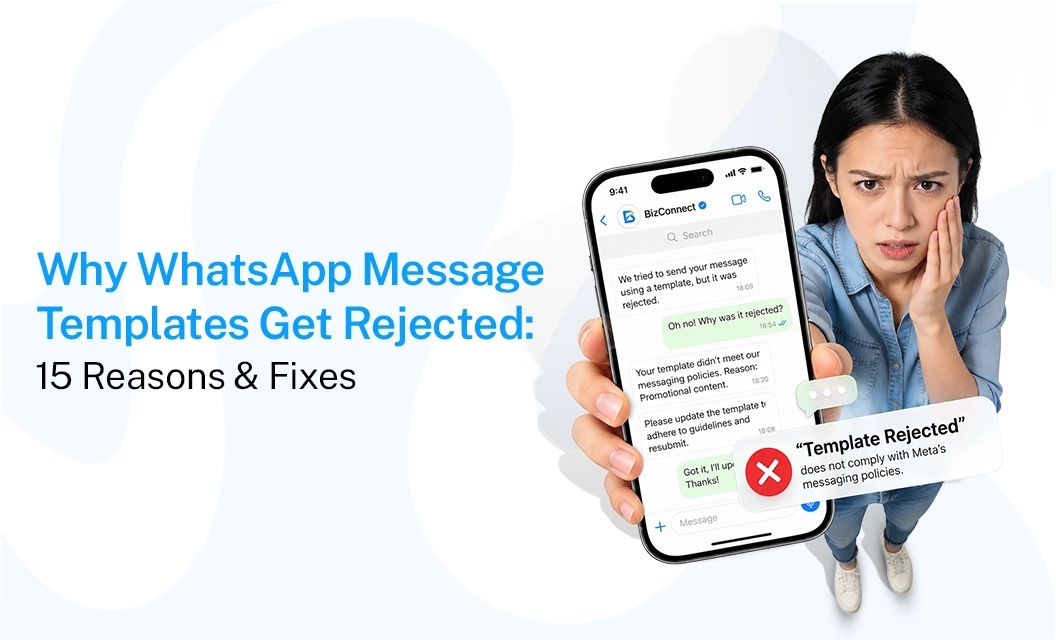
Why WhatsApp Message Templates Get Rejected: 15 Reasons & Fixes
Introduction:
WhatsApp templates get rejected mainly for three types of issues:
formatting errors (bad variables, wrong syntax),
category mismatch (marketing content submitted as utility),
and policy violations (prohibited content, missing consent, or brand/legal issues).
Meta reviews every template against its Business Messaging Policy and Commerce Policy before approval. Most rejections are fixable in minutes once you know which of the three buckets your template falls into. Before resubmitting, check the exact rejection reason in WhatsApp Manager or your BSP dashboard, fix that specific issue, and confirm your WhatsApp template setup follows the correct format for variables, buttons, and category.
How WhatsApp Template Review Works
Every template submitted through the WhatsApp Business API goes through an automated review first, and a manual review if flagged. Meta checks the template body, header, footer, buttons, and variables against its guidelines. Approval usually takes a few minutes, but can extend to 24–48 hours for new accounts or flagged content.
Note: There's no single universal cause for rejection — Meta doesn't publish a complete deterministic list, so some reasons below are documented policy, and others are commonly reported patterns. Where the cause isn't officially confirmed, treat it as a likely factor rather than a guarantee.
15 Reasons WhatsApp Templates Get Rejected (With Fixes)
Important: These should be presented as possible rejection or review issues, not guaranteed rejection triggers. Meta explicitly states that templates can be reviewed, approved, paused, or rejected, while its guidelines and policies determine whether a template is compliant.
How to Fix a WhatsApp Template That Was Rejected
If your WhatsApp template is rejected, avoid submitting the same message repeatedly without making any changes. First, understand what may have caused the rejection, review the template from both a content and technical perspective, make the necessary changes, and then resubmit it.
Step 1: Check the Rejection Reason
Start by checking the status and rejection details shown in WhatsApp Manager or your WhatsApp API provider's dashboard. The reason provided should be your starting point for troubleshooting. Review the complete template and its intended use.
Step 2: Confirm the Template Category
Check whether the selected category accurately reflects the message.
For example, a message confirming an order should generally serve a transactional purpose. If you add a discount or promotional offer to that message, the content may no longer clearly fit the intended Utility use case.
If the category and content do not match, revise the message or select the appropriate category before resubmitting.
Step 3: Review the Message Content
Check whether:
The purpose of the message is clear.
The business sending the message is identifiable.
The content is relevant to the recipient.
Promotional language is appropriate for the selected category.
The message contains misleading or unclear claims.
The content complies with applicable WhatsApp policies.
Avoid making small word changes without addressing the underlying issue. If the message is unclear or its purpose does not match the selected category, rewrite it more substantially.
Step 4: Check Variables and Examples
Review every variable in the template. Make sure variables are correctly formatted, numbered sequentially, and supported by realistic examples.
For example:
Hi {{1}}, your appointment with {{2}} is confirmed for {{3}}.
Check that each variable has a clear purpose and that the examples submitted with the template represent the type of information that will actually be sent.
Too many variables can also make a message difficult to understand. Use dynamic fields only where they add useful context or personalization.
Step 5: Review Headers, Buttons and Links
Check whether:
The header is configured correctly.
Any media meets the required specifications.
The footer is relevant.
Buttons use the correct type.
Button text accurately describes the action.
URLs are complete and functional.
The destination of a link matches what the message promises.
For example, if a button says "Track Order," the link should take the customer to an appropriate order-tracking page rather than a general website homepage.
Step 6: Check the Template Language
If the template is being submitted in a specific language, review the wording and translation carefully. Make sure the translated version communicates the same meaning as the original message and does not introduce unclear or misleading wording.
If you manage templates in multiple languages, review each language version separately rather than assuming that an approved version in one language guarantees approval in another.
Step 7: Review WhatsApp's Current Policies
Before resubmitting, check the latest WhatsApp Business and Commerce Policies that apply to your message and business use case.
This is particularly important if the template relates to regulated products, financial services, healthcare, promotions, or another sensitive business category.
Policy requirements can change, so relying on an old template that was approved previously is not always enough.
Step 8: Resubmit or Appeal
Once you have identified and corrected the potential issue, submit the revised template for review.
If you believe the rejection was incorrect, check whether an appeal option is available through Meta's support process. Provide the requested information and a clear sample rather than repeatedly submitting the same template.
Resubmission Checklist
Before resubmitting a rejected template, run through this:
Read the exact rejection reason in Account Quality or the BSP dashboard
Confirm all variables use {{1}}, {{2}} format with no gaps or special characters
Make sure no variable sits at the very start or end of the message
Add sample values for every variable so its purpose is clear
Check the template category matches the actual content (Utility, Marketing, Authentication)
Remove any restricted content (prohibited goods, guarantees, threats, third-party brand names)
Confirm CTA button URLs point to a real destination, not a wa.me link
Verify opt-in consent exists for the audience this template will send to
Give the template a unique, descriptive name (avoid resubmitting identical body text)
If you believe the rejection was an error, file an appeal with supporting evidence rather than resubmitting blindly
Does Resubmitting a Rejected Template Cost You Anything?
Resubmitting itself doesn't cost money, but repeated rejections can slow down your account's review speed and, in some cases, affect your quality rating. There's no confirmed direct cost tied to a single rejection, but a pattern of rejected or paused templates can affect delivery reliability and how quickly future templates get approved. This is separate from message-sending costs, which are covered under WhatsApp API pricing.
What Happens If a Template Keeps Getting Rejected?
If the same template is rejected repeatedly, don't keep resubmitting with small tweaks — start with a new template name and a rewritten body. Templates disabled after repeated pauses generally can't be reinstated with edits; Meta expects a fresh submission with genuinely different content, not a reworded copy of the same message.
Final Takeway:
A WhatsApp template rejection is usually a signal to review the message more carefully—not simply to change a few words and submit again. Start with the rejection reason, then check the category, policy compliance, variables, examples, components, buttons and links. Treat commonly reported rejection causes as troubleshooting possibilities rather than guaranteed rules, because Meta's review process can consider the overall template and its context. Once the template is approved, you can manage your templates, campaigns and WhatsApp messaging workflow from one place.
Frequently Asked Questions
How long does WhatsApp template approval take?
Approval time can vary. Meta recommends planning ahead for review time rather than assuming every template will be approved immediately. Providing a useful sample can help give reviewers the context needed to evaluate the template.
Can I edit a rejected WhatsApp template?
Yes. The practical approach is to identify the issue, revise the template and submit the corrected version. If you believe the rejection was incorrect, Meta also provides an appeal process through Direct Support.
Why is my WhatsApp template still not approved after editing it?
A revised template can still require review. Check whether the underlying issue was actually addressed rather than simply changing individual words. Review the category, variables, components, examples and policy compliance before resubmitting.
Can I appeal a rejected WhatsApp template?
Yes. Meta's current marketing guidance states that rejected message templates can be appealed through Direct Support, and an appeal requires a sample.
Can a Utility template contain promotional content?
Be careful here. A Utility template should represent a genuine utility use case. If the message includes promotional content, it may no longer accurately fit that purpose. Separate transactional updates from promotional campaigns rather than trying to combine both in one template.
Fix the template, get it approved, and manage your WhatsApp campaigns with Emovur API setup.