

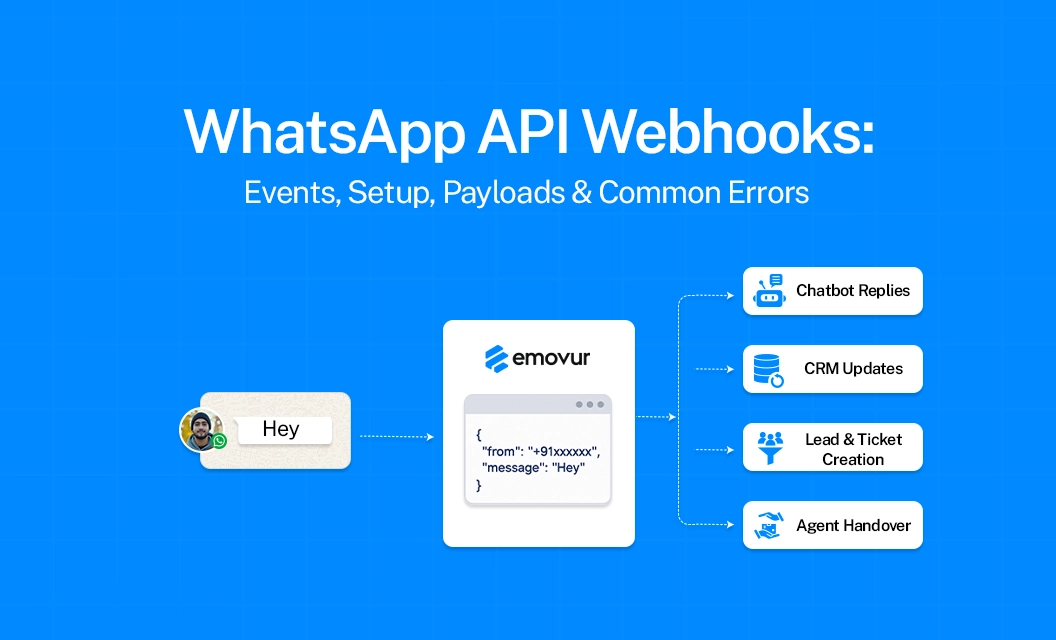
A WhatsApp API webhook is an HTTP callback that sends WhatsApp events from the platform to your application. It allows your system to receive notifications when customers send messages, when message statuses change, and when other subscribed events occur. The basic flow is simple:
configure a webhook endpoint, make it reachable over HTTPS, subscribe to the relevant WhatsApp Business Account, and process the JSON payload your application receives. Meta's official Postman collection confirms that webhook events are sent to the configured webhook URL after the relevant WABA subscription is in place
What Is a WhatsApp API Webhook?
A webhook is the mechanism the WhatsApp Business API uses to notify your application about activity tied to your business phone number. Rather than your app repeatedly asking "any new messages?", Meta's servers send an HTTP POST request to a URL you control every time a subscribed event fires.
This push-based model is what makes real-time chat, delivery receipts, and automated workflows possible. A webhook only works after two things are in place: your endpoint is publicly reachable over HTTPS, and it has completed Meta's one-time verification handshake.
WhatsApp Webhook Events You Can Subscribe To
Once your endpoint is verified, you choose which event fields to subscribe to from the Meta App Dashboard. Each field controls a category of notifications.
Most integrations only need messages, since it covers both inbound conversations and outbound delivery receipts — the two events developers ask about most. For the complete, current field list and payload schemas, always cross-check the WhatsApp API documentation alongside Meta's own reference.
Answer: The most common WhatsApp webhook events are inbound messages, outbound message status changes (sent, delivered, read, failed), and template status updates. Account-level events like quality rating changes and policy alerts are also available but subscribed to separately.
How to Set Up a WhatsApp API Webhook
Setting up a webhook has two phases: the one-time verification handshake, and the ongoing event subscription. Here's the sequence:
Create or use a Meta Business app in the Meta App Dashboard and add the Webhooks product.
Build a public HTTPS endpoint that can handle both GET (verification) and POST (event delivery) requests.
Handle the verification GET request. Meta sends hub.mode=subscribe, a hub.verify_token you defined, and a hub.challenge string. Your endpoint must confirm the token matches and echo back the challenge value with an HTTP 200 status.
Subscribe to the fields you need (e.g., messages) on the WhatsApp Business Account product in the dashboard.
Return HTTP 200 quickly on every POST. Acknowledge receipt first, then process the payload asynchronously — Meta treats anything other than a 200 as a failed delivery and will retry.
Test with a real message or status change before going live, and confirm the payload structure matches what your handler expects.
If you're implementing this on Emovur specifically, the platform's own configuration steps — API keys, callback registration, and field toggles — are documented in the Emovur webhook documentation, which should be treated as the source of truth for Emovur-side setup rather than generic tutorials.
Answer: Setting up a WhatsApp API webhook means registering an HTTPS callback URL in the Meta App Dashboard, passing the GET verification handshake (matching hub.verify_token and echoing hub.challenge), then subscribing to the event fields you want — most commonly messages.
Sample WhatsApp Webhook Payload (Example)
Every webhook notification arrives as a JSON object wrapped in the same outer structure, with the event-specific detail nested inside entry[].changes[].value.
{
"object": "whatsapp_business_account",
"entry": [
{
"id": "WHATSAPP_BUSINESS_ACCOUNT_ID",
"changes": [
{
"field": "messages",
"value": {
"messaging_product": "whatsapp",
"metadata": {
"display_phone_number": "PHONE_NUMBER",
"phone_number_id": "PHONE_NUMBER_ID"
},
"contacts": [
{ "profile": { "name": "CUSTOMER_NAME" }, "wa_id": "CUSTOMER_WA_ID" }
],
"messages": [
{
"from": "CUSTOMER_WA_ID",
"id": "MESSAGE_ID",
"timestamp": "TIMESTAMP",
"text": { "body": "MESSAGE_TEXT" },
"type": "text" } ] ] } ]}
A few structural rules worth internalizing: the top-level object field is always whatsapp_business_account; entry can contain multiple items in a single request; and field tells you which subscription generated this notification, so your handler should branch on it before parsing value. Payloads can be up to 3MB, and a message type unsupported by the API arrives as an "unknown message" event rather than being dropped silently.
Common WhatsApp API Webhook Errors & Troubleshooting
The single most consequential error pattern is silent, extended downtime: because there is no event log or replay mechanism on Meta's side, any webhook outage beyond the retry window is unrecoverable for the events that occurred during it. Alerting on failed deliveries, not just on server crashes, is the difference between a brief blip and permanently lost conversation history.
WhatsApp Webhook Security & Best Practices
Verify the request signature:Meta signs payloads; validate the signature header against your app secret before trusting the body.
Respond fast, process later: Return HTTP 200 within a few seconds and hand off heavy work (database writes, downstream API calls) to a queue.
De-duplicate by message/event ID: Retries are expected behavior, not a bug — your handler should be idempotent.
Use mutual TLS where supported: for an added layer of endpoint authentication.
Log and alert on non-200 responses: from your own endpoint so failures surface before the retry window lapses.
Keep a staging endpoint: separate from production so schema or template changes can be tested without risking live traffic.
Final Takeway:
A WhatsApp API webhook connects WhatsApp events to your application in real time. The setup involves creating a secure HTTPS endpoint, configuring the webhook, subscribing the relevant WABA, and correctly processing the JSON events that arrive. Most webhook issues come from endpoint configuration, missing WABA subscriptions, incorrect event handling, or payload parsing. Start by testing the connection and subscription, then inspect the actual payload before changing your application logic.
Frequently Asked Questions
What is a WhatsApp API webhook used for?
It allows your application to receive notifications when WhatsApp events occur, such as incoming messages and message status updates.
Do I need to subscribe my WABA to receive webhook events?
Yes. Meta's current documentation states that the relevant WhatsApp Business Account must be subscribed to the application to receive its webhook events.
Does a WhatsApp webhook receive only customer messages?
No. Depending on the subscribed events, webhooks can contain different types of notifications, including message-related events and business account updates.
Does a webhook need HTTPS?
Yes. Your webhook server needs to be publicly reachable and support HTTPS with a valid SSL certificate.
Where can I find a WhatsApp webhook example?
Meta's official Postman collection includes webhook examples and a webhook payload reference.
Where should I look for an Emovur-specific webhook setup?
Use the Emovur webhook documentation for implementation details specific to Emovur.
Why does my webhook verification keep returning a 403 error?
This almost always means the hub.verify_token your server checks against doesn't exactly match the token you entered in the dashboard, or your endpoint isn't returning the hub.challenge value as plain text with an HTTP 200 status.
How large can a webhook payload be?
Cloud API webhook payloads can be up to 3MB, which comfortably covers text, media metadata, and multi-message batches in a single notification.
Once your webhook is verified and stable, the next step is wiring up message sending and template management on top of it — start by reading the Emovur developer documentation to configure your callback URL and event subscriptions correctly from day one.